> ## Documentation Index
> Fetch the complete documentation index at: https://docs.polym.trade/llms.txt
> Use this file to discover all available pages before exploring further.

# Import Private Key

> How to use your Polymtrade private key in another wallet app

If you already use a wallet app (Metamask, <Link href="https://phantom.app" target="_blank">Phantom 👻</Link>, OKX, Exodus), follow the steps in the guide below.
If you don’t have a wallet yet, you can first create / connect one in Phantom and then import your Polymtrade private key — see **<Link href="https://docs.polym.trade/import-private-key#new-to-phantom">New to Phantom?</Link>** section after the main steps.

<Steps>
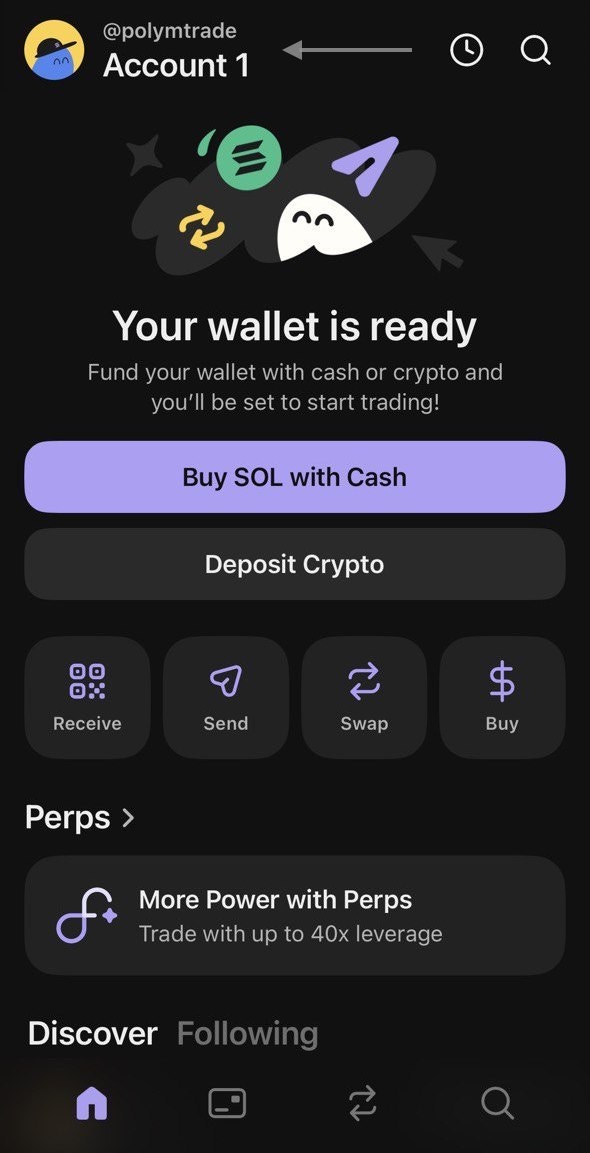
  <Step title="Open your wallet app">
    Launch Metamask, OKX, Exodus, or any wallet that supports importing private keys.
    In our example we’ll do it in Phantom wallet.

    <Frame>
      <img src="https://mintcdn.com/polymtrade/jA2Op8e7JlYSFjBC/images/phantom/phantom-1.jpg?fit=max&auto=format&n=jA2Op8e7JlYSFjBC&q=85&s=ddb2eb38fd739ed37dde1d2b028dc496" noZoom width="590" height="1153" data-path="images/phantom/phantom-1.jpg" />
    </Frame>
  </Step>

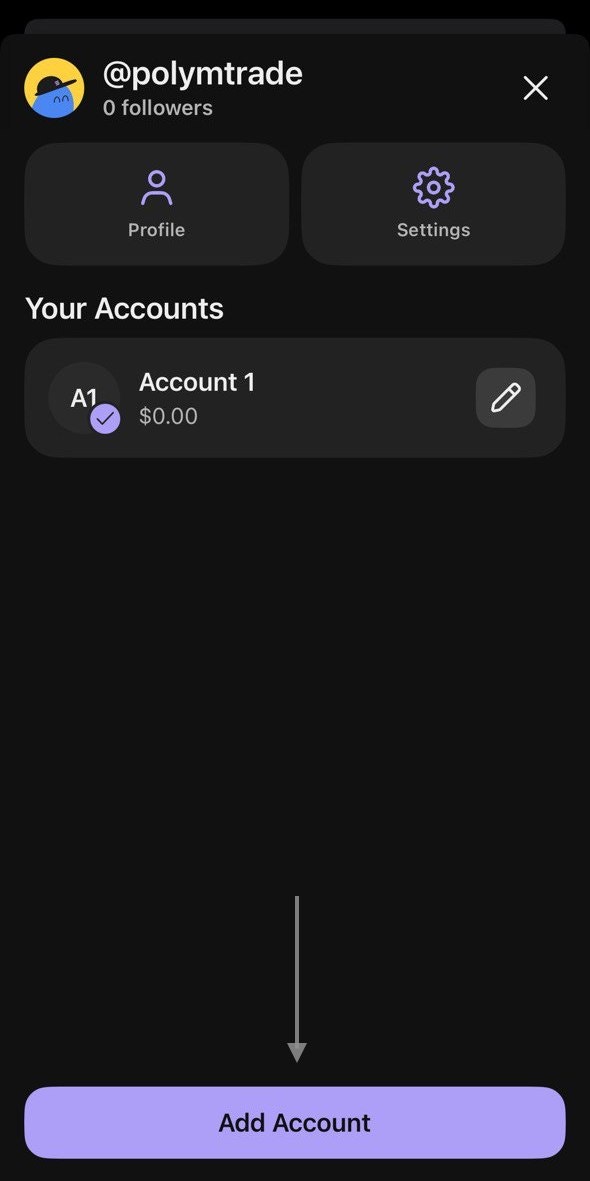
  <Step title="Find the import option">
    Look for buttons like “I already have a wallet”, “Import Account”, or “Restore wallet”, or, as it is in Phantom – “Add Account”.

    <Frame>
      <img src="https://mintcdn.com/polymtrade/jA2Op8e7JlYSFjBC/images/phantom/phantom-2.jpg?fit=max&auto=format&n=jA2Op8e7JlYSFjBC&q=85&s=811b497f430592a00edc65cb9ae7e00e" noZoom width="590" height="1181" data-path="images/phantom/phantom-2.jpg" />
    </Frame>
  </Step>

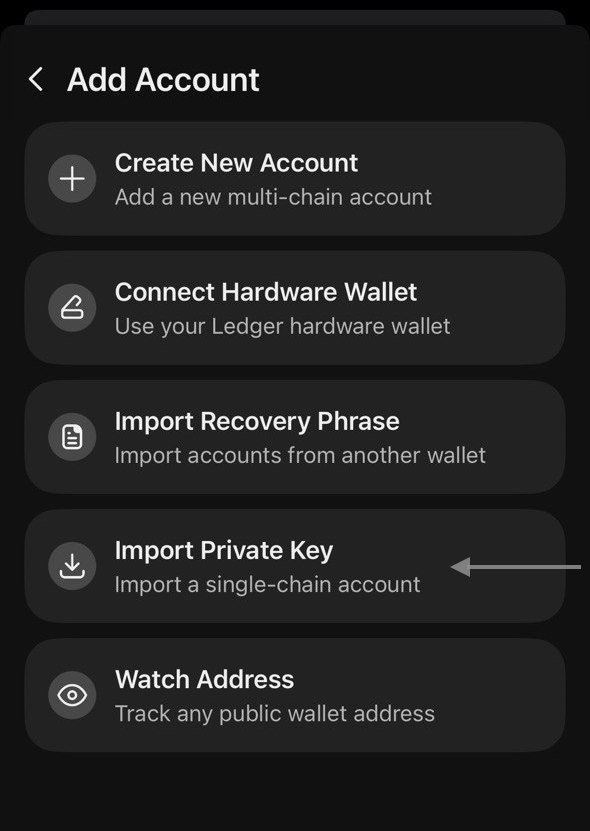
  <Step title="Choose import private key">
    Select Import using Private Key (not recovery phrase / seed phrase).

    <Frame>
      <img src="https://mintcdn.com/polymtrade/jA2Op8e7JlYSFjBC/images/phantom/phantom-3.jpg?fit=max&auto=format&n=jA2Op8e7JlYSFjBC&q=85&s=3099cc2eb11004247d6e08fbf120a94c" noZoom width="590" height="831" data-path="images/phantom/phantom-3.jpg" />
    </Frame>
  </Step>

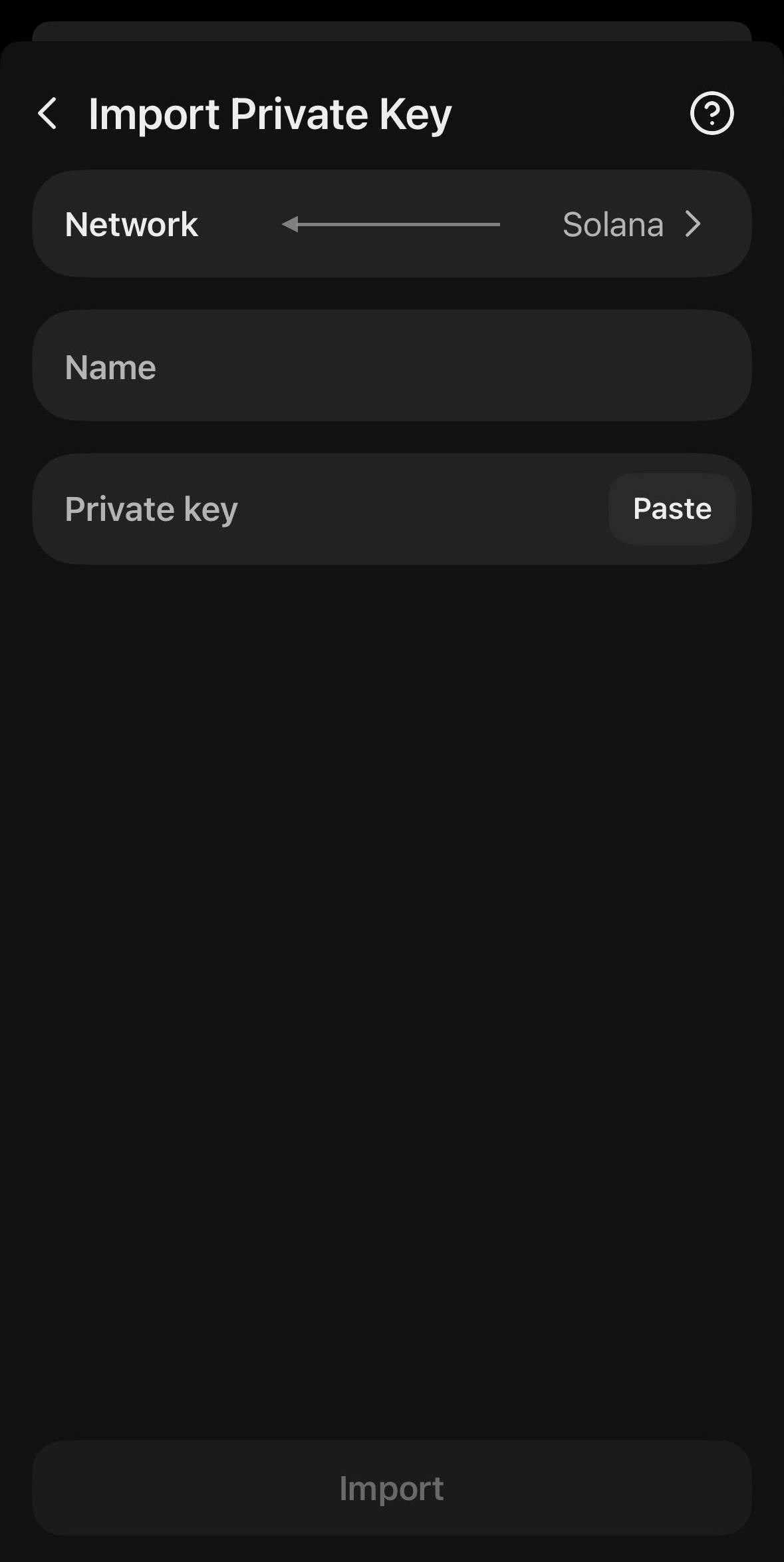
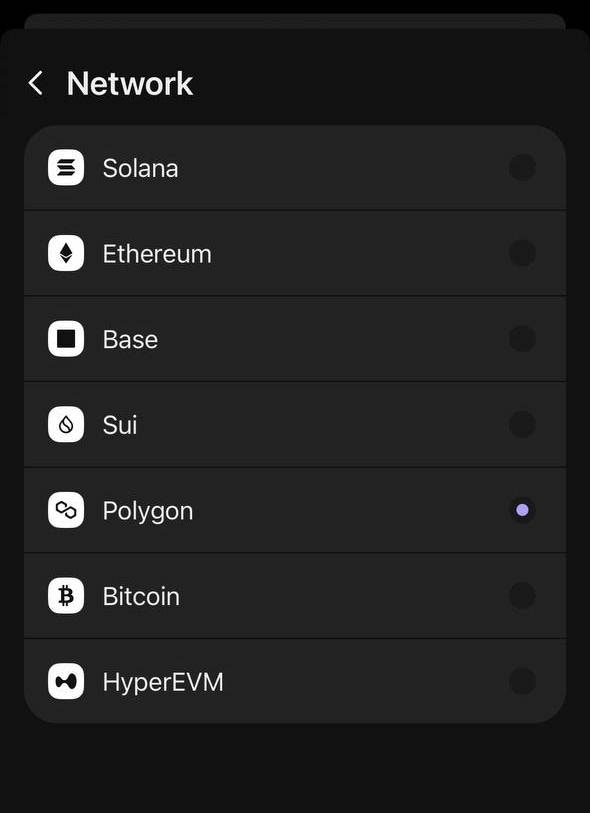
  <Step title="Choose correct network">
    Select the network where your Polymtrade funds are located (for example Polygon, Base or Ethereum).

    <Frame>
      <img src="https://mintcdn.com/polymtrade/jA2Op8e7JlYSFjBC/images/phantom/phantom-4.jpg?fit=max&auto=format&n=jA2Op8e7JlYSFjBC&q=85&s=793e619729fae15739179323510005dc" noZoom width="1179" height="2348" data-path="images/phantom/phantom-4.jpg" />
    </Frame>

    <Frame>
      <img src="https://mintcdn.com/polymtrade/jA2Op8e7JlYSFjBC/images/phantom/phantom-5.jpg?fit=max&auto=format&n=jA2Op8e7JlYSFjBC&q=85&s=10126961bd14273d89af5b24304f9e1b" noZoom width="590" height="813" data-path="images/phantom/phantom-5.jpg" />
    </Frame>
  </Step>

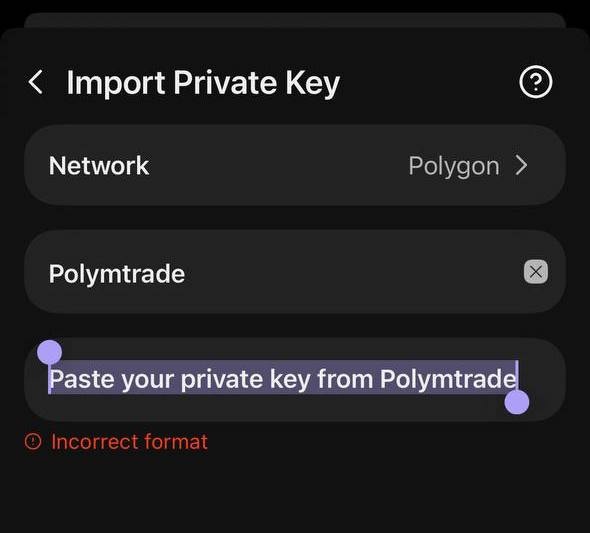
  <Step title="Paste your private key">
    Paste the key you copied from Polymtrade.

    <Frame>
      <img src="https://mintcdn.com/polymtrade/jA2Op8e7JlYSFjBC/images/phantom/phantom-6.jpg?fit=max&auto=format&n=jA2Op8e7JlYSFjBC&q=85&s=8f432216363ae61141c5e16906ca8508" noZoom width="590" height="533" data-path="images/phantom/phantom-6.jpg" />
    </Frame>
  </Step>

  <Step title="Complete setup">
    Follow the on-screen steps. You may be asked to set a password.
  </Step>

  <Step title="Confirm import">
    Press Import / Confirm — your wallet will appear in the app.
  </Step>
</Steps>

***

### New to Phantom?

If you don’t have Phantom installed yet or you see the welcome screen instead of the account view, follow these steps first.

<Steps>
  <Step title="Install and open Phantom">
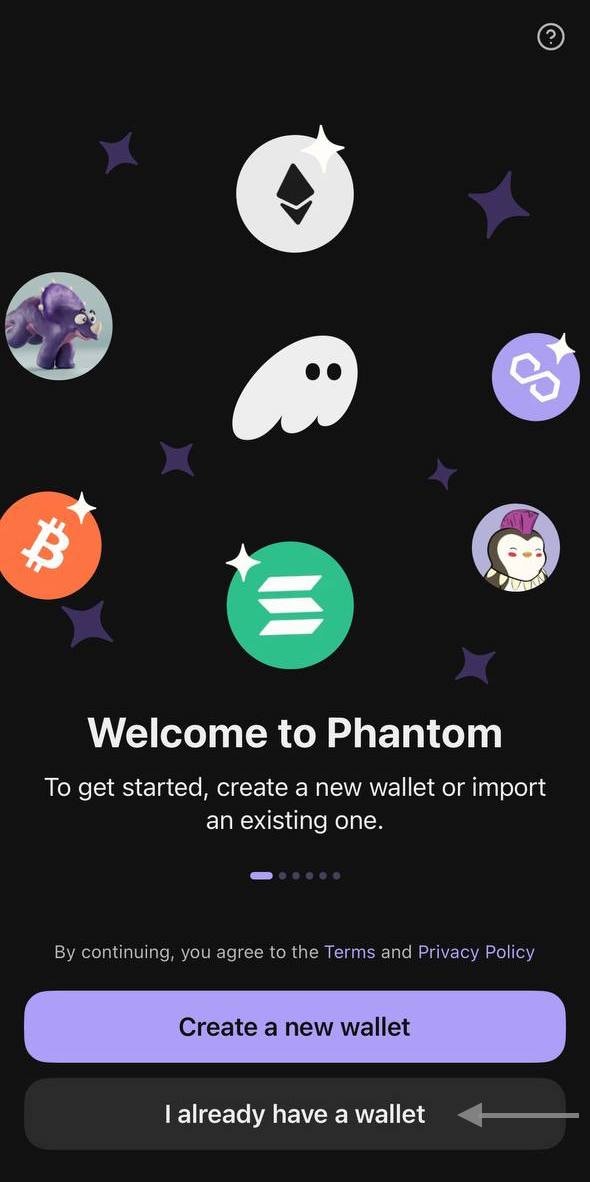
    Download Phantom from the App Store or Google Play and open the app.
    On the welcome screen choose how you want to start. Tap **I already have a wallet** if you only want to import your Polymtrade account,
    or create a new wallet first and then add Polymtrade as an extra account.

    <Frame>
      <img src="https://mintcdn.com/polymtrade/jA2Op8e7JlYSFjBC/images/phantom/onboarding-1.jpg?fit=max&auto=format&n=jA2Op8e7JlYSFjBC&q=85&s=4e9ddd9789cf69a0a2cc73bdf935b41b" noZoom width="590" height="1182" data-path="images/phantom/onboarding-1.jpg" />
    </Frame>
  </Step>

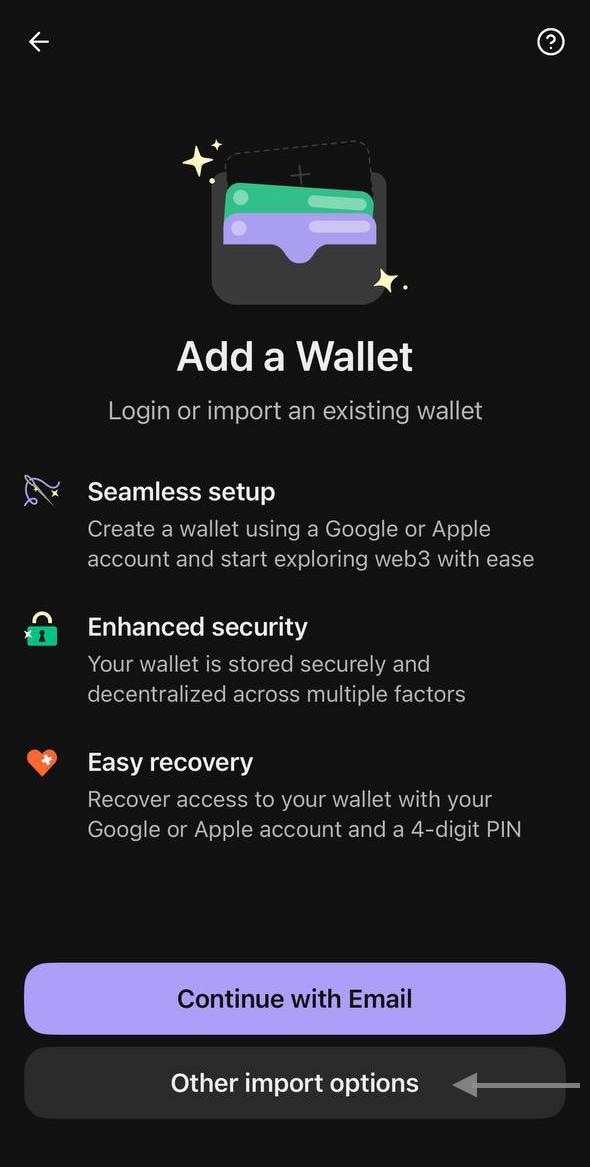
  <Step title="Open import options">
    On the “Add a Wallet” screen tap **Other import options**.

    <Frame>
      <img src="https://mintcdn.com/polymtrade/jA2Op8e7JlYSFjBC/images/phantom/onboarding-2.jpg?fit=max&auto=format&n=jA2Op8e7JlYSFjBC&q=85&s=6db60816efcca9f74a783e9463140c6b" noZoom width="590" height="1167" data-path="images/phantom/onboarding-2.jpg" />
    </Frame>
  </Step>

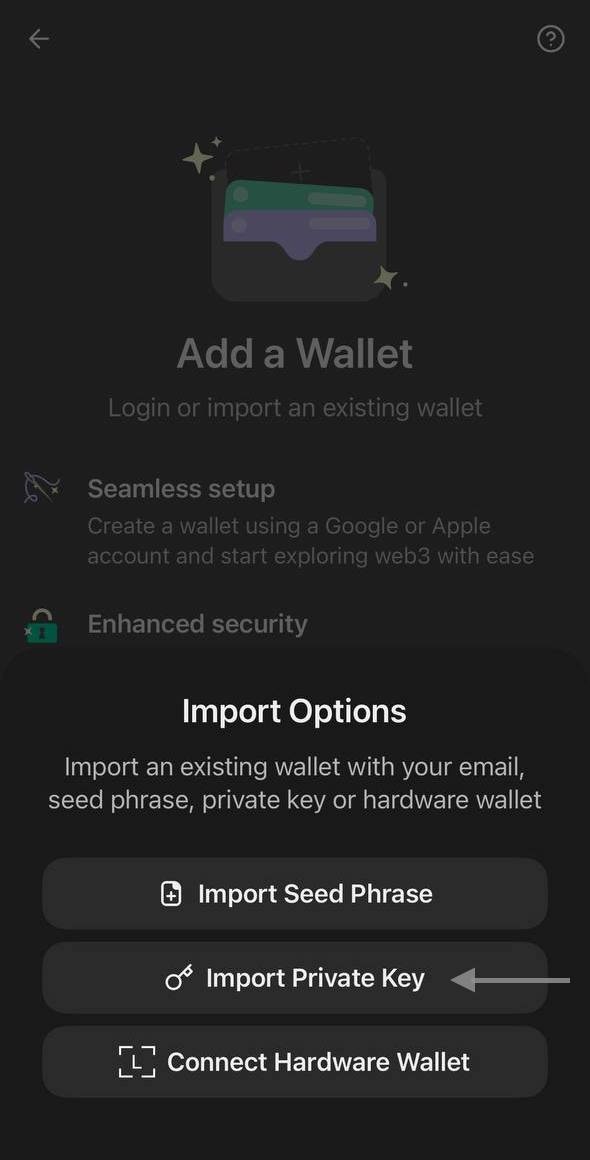
  <Step title="Select Import Private Key">
    In the Import Options menu choose **Import Private Key**.

    <Frame>
      <img src="https://mintcdn.com/polymtrade/jA2Op8e7JlYSFjBC/images/phantom/onboarding-3.jpg?fit=max&auto=format&n=jA2Op8e7JlYSFjBC&q=85&s=f0e4cc3758a2a79b0673367c5cb621ef" noZoom width="590" height="1160" data-path="images/phantom/onboarding-3.jpg" />
    </Frame>

    You will see the **Import Private Key** screen with Network / Name / Private key fields.

    <Frame>
      <img src="https://mintcdn.com/polymtrade/jA2Op8e7JlYSFjBC/images/phantom/phantom-6.jpg?fit=max&auto=format&n=jA2Op8e7JlYSFjBC&q=85&s=8f432216363ae61141c5e16906ca8508" noZoom width="590" height="533" data-path="images/phantom/phantom-6.jpg" />
    </Frame>
  </Step>

  <Step title="Continue with this guide">
    From here, continue with the steps above starting from **Choose correct network**.
  </Step>
</Steps>

***

### Important notes

* Private key is full access to your funds. Never share it with anyone.
* Store it securely (offline, password manager, encrypted file, or on paper).
* Make a backup after importing.

***

### FAQ

**Can I import this wallet into Metamask / OKX / Exodus / Phantom?**
Yes — you can import this private key into any wallet that supports EVM keys.

**What about Solana?**
This private key imports your EVM account (Ethereum / Polygon / Base).
It does not automatically create a Solana wallet — you will still have a separate SOL account inside Phantom.

**Will I see my USDC / funds after import?**
Yes — they will appear under the relevant EVM network once you import the key and switch the network in the wallet.

**Can I send funds after import?**
Yes, you can trade and withdraw normally from the imported wallet.

**What happens if I lose my private key?**
You lose access forever. Make sure to back it up securely.