1
Open the deposit window and choose Card
Open the menu, tap Deposit and switch to Card.
2
Enter the amount and pick a provider
Type the amount or tap a preset. Under Available in your country you see the providers that work where you are (in the US, for example, Stripe, Swapped and Topper). More, like Coinbase and MoonPay, are under Other providers. Some offer bank transfer or local methods like PIX and UPI, and many offer Apple Pay or Google Pay inside their own checkout.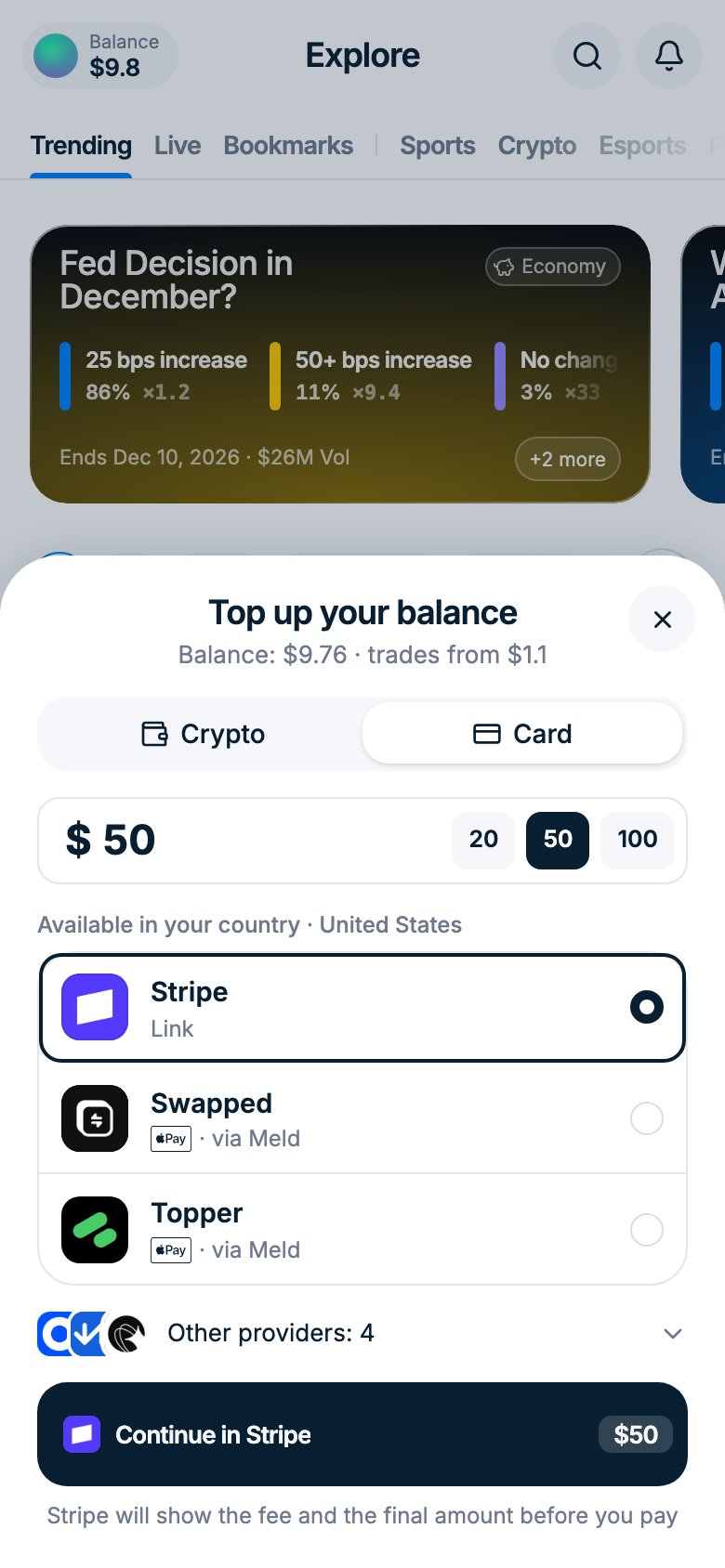
3
Continue in the provider
Tap Continue in with the provider’s name. The provider opens in a new tab (Stripe opens over the app) and shows the fee and the final amount before you pay. You can close our window: your balance updates on its own when the payment arrives.
Good to know
- Fees. Card providers set their own fees and exchange rate. You usually receive about 5–7% less than you pay, and with some providers more. Compare providers, or deposit crypto: USDC on Polygon is free.
- Minimums. If the amount is too small for a provider, the window shows Minimum and its amount under that provider. For example, MoonPay starts at $20. Raise the amount or pick another provider.
- ID check. Polymtrade doesn’t ask for ID, but the provider may. If it rejects your documents, buy USDC on an exchange and send it on Polygon to your deposit address.
- Card declined. Check the billing address, try another card or another provider.
- Nothing opens. Allow pop-ups for polym.trade and tap Continue again.
- No providers in your country. Deposit with crypto instead.
MoonPay
MoonPay requires a one-time identity verification before your first purchase. The process takes about 5 minutes. If you’ve already registered, skip straight to Step 11.1
Accept the Terms of Use
MoonPay opens with the Terms of Use screen. Review the terms and tap Accept to continue.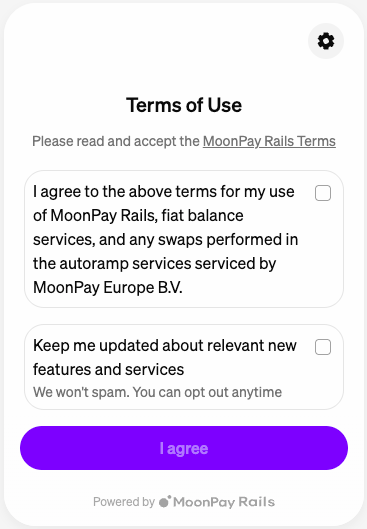
2
Start the questionnaire
MoonPay will ask you a few questions to verify your identity. Tap Continue to begin.
3
Tell about yourself
Answer questions about your source of income and wealth. Select the options that apply and tap Continue.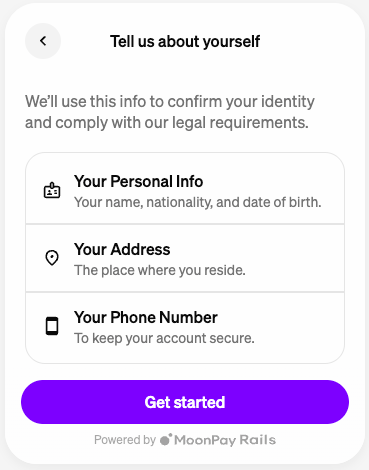
4
Enter your personal information
Fill in your first name, last name, date of birth, and nationality. Tap Continue.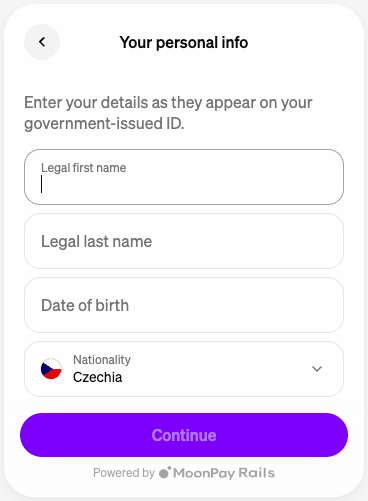
5
Select your country or region
Choose your country or region from the list.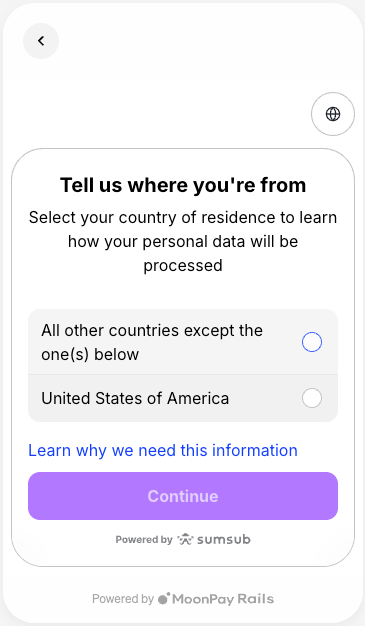
6
Confirm your country of residence
Confirm the country of residence shown is correct, then tap Continue.
7
Choose your ID document type
Select the type of ID you’ll use for verification — passport, driver’s license, or national ID card.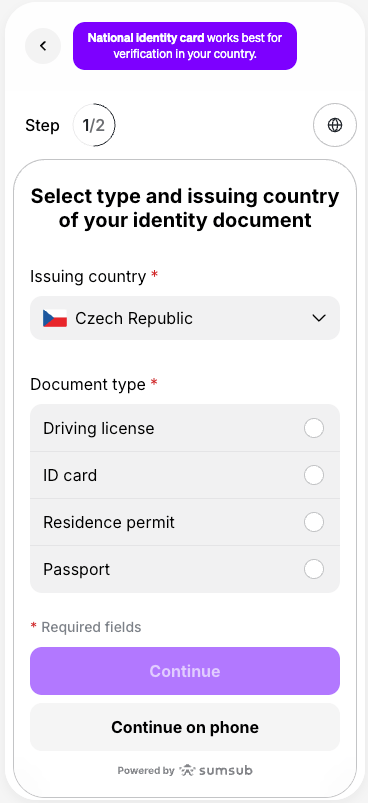
8
Verify your identity
MoonPay will explain the verification process: you’ll need to take a photo of your ID document and then complete a face scan. Tap Continue to proceed.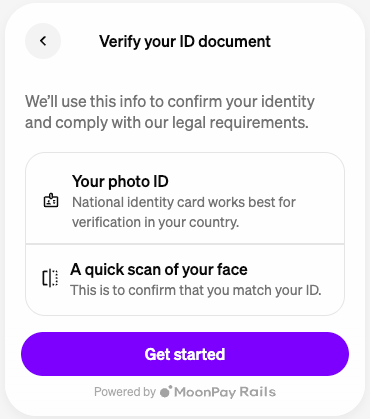
9
Complete the face scan
Follow the on-screen tips for a successful face scan — good lighting, face centered, no glasses. When ready, allow camera access and complete the scan.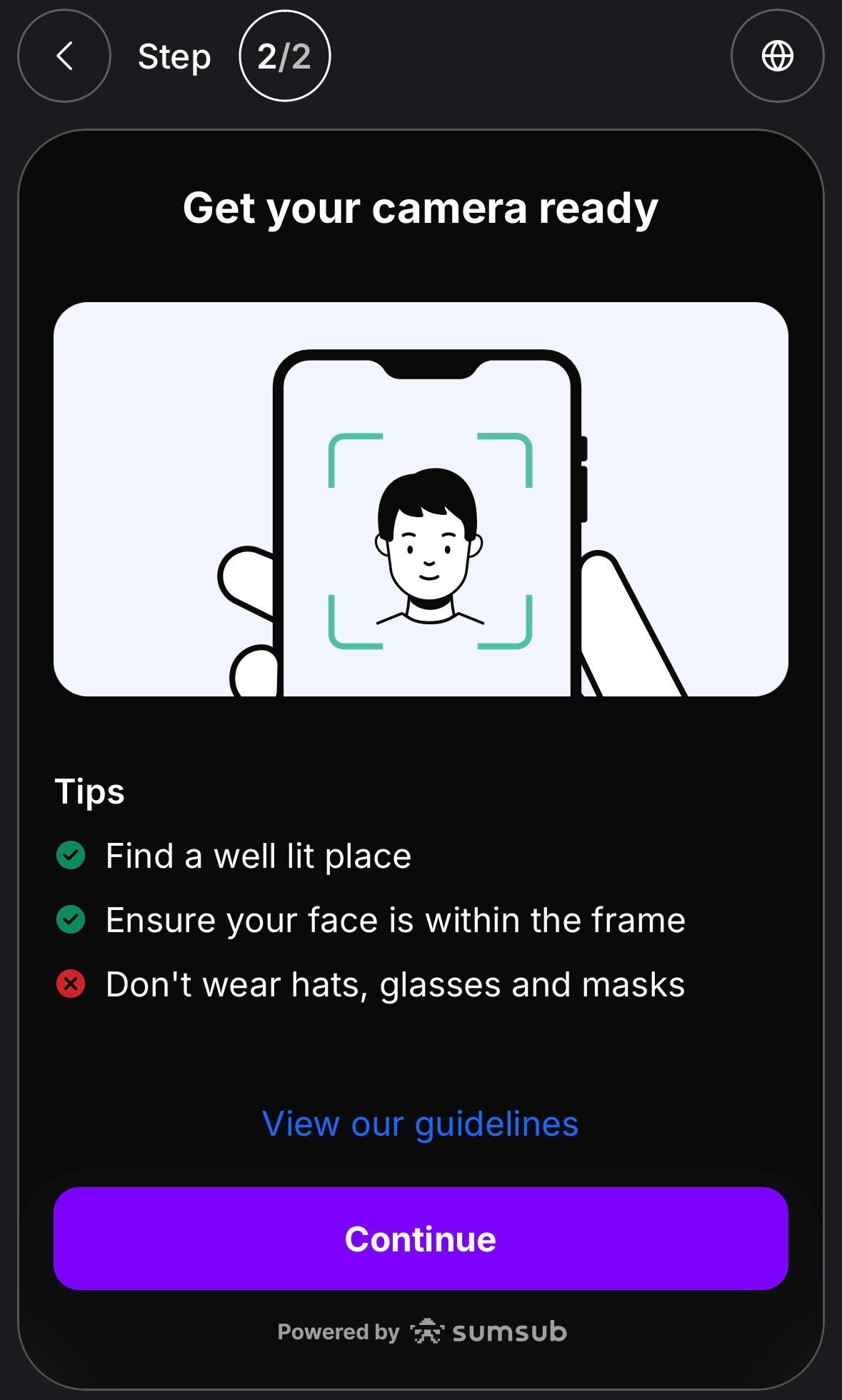
10
Wait for verification
MoonPay is verifying your data. This usually takes less than a minute. Once complete, you’ll see a Profile verified confirmation.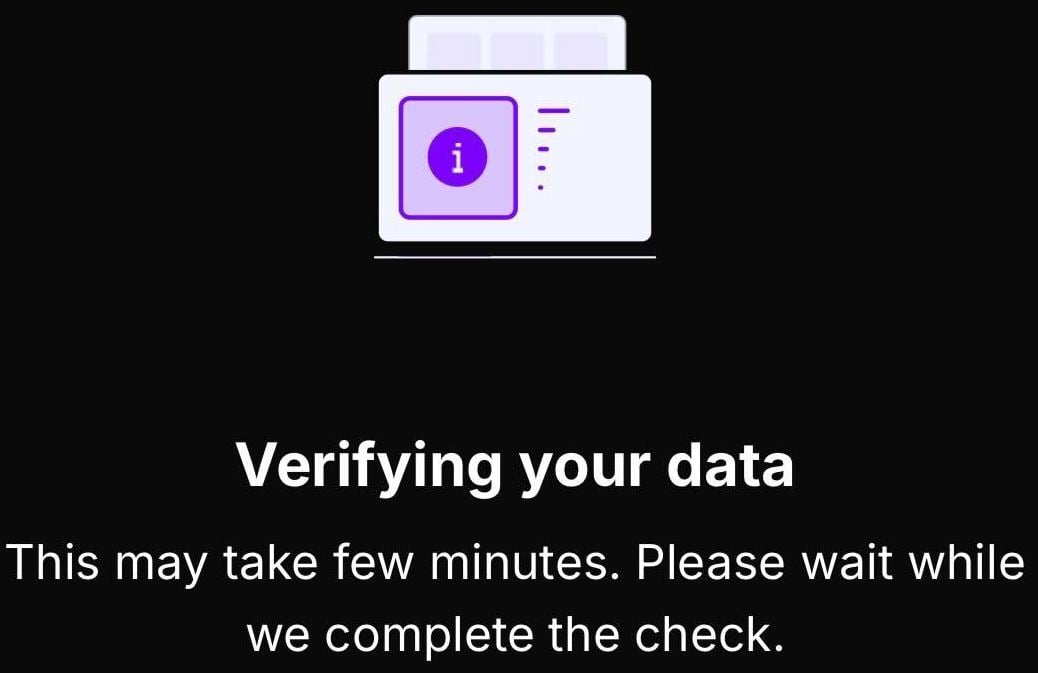
11
Enter the USDC amount
Enter how much USDC you’d like to buy. You’ll see the total cost including fees. Tap Continue.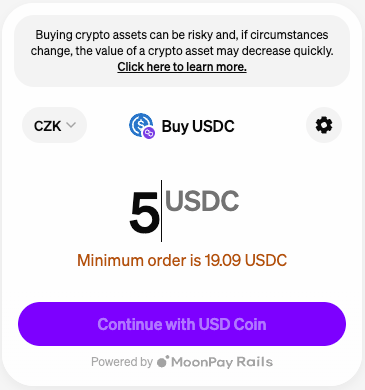
12
Confirm your order and pay
Review the order summary — amount, fees, and total. Enter your card details or select Apple Pay, then tap Pay with card.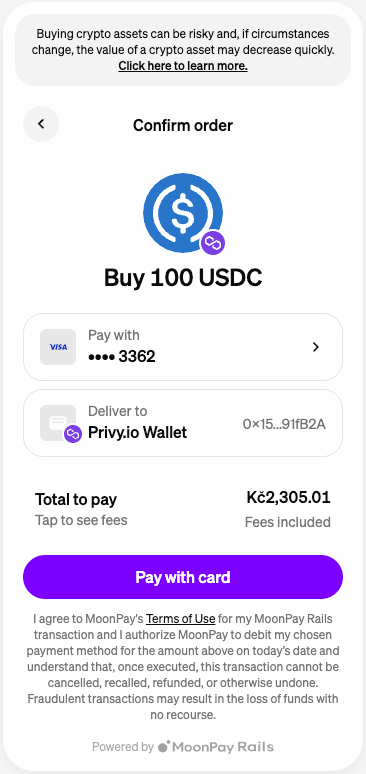
13
Complete card verification
Your bank may require 3D Secure verification. Follow the prompts from your bank to authorize the payment.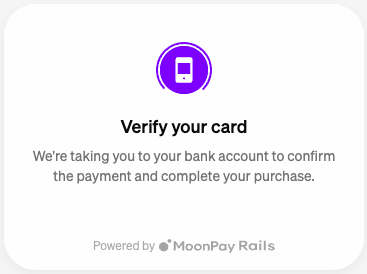
14
Order complete
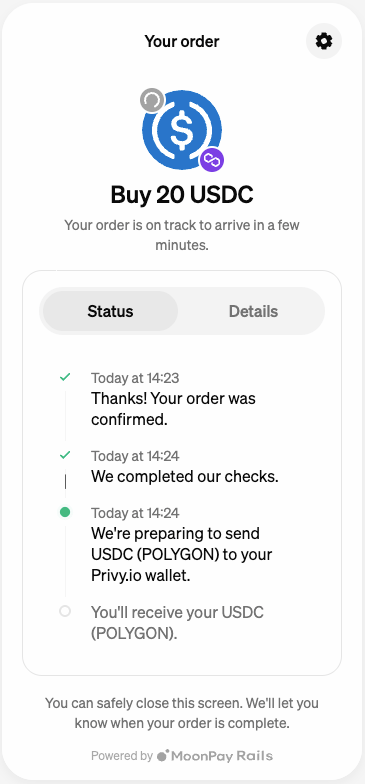
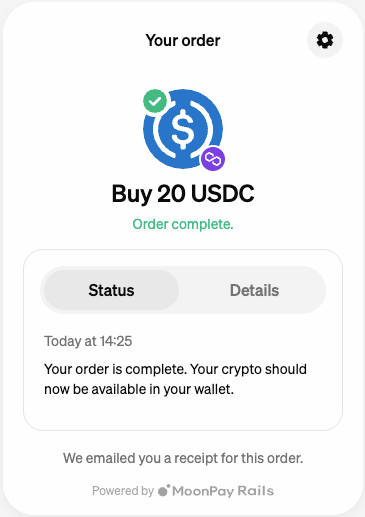
Once the payment is processed, you’ll see the order status change to complete. The USDC will be delivered to your Polymtrade wallet automatically.