

1
Open the deposit window
Open the menu and tap Deposit. On desktop it is on the account card at the bottom of the sidebar.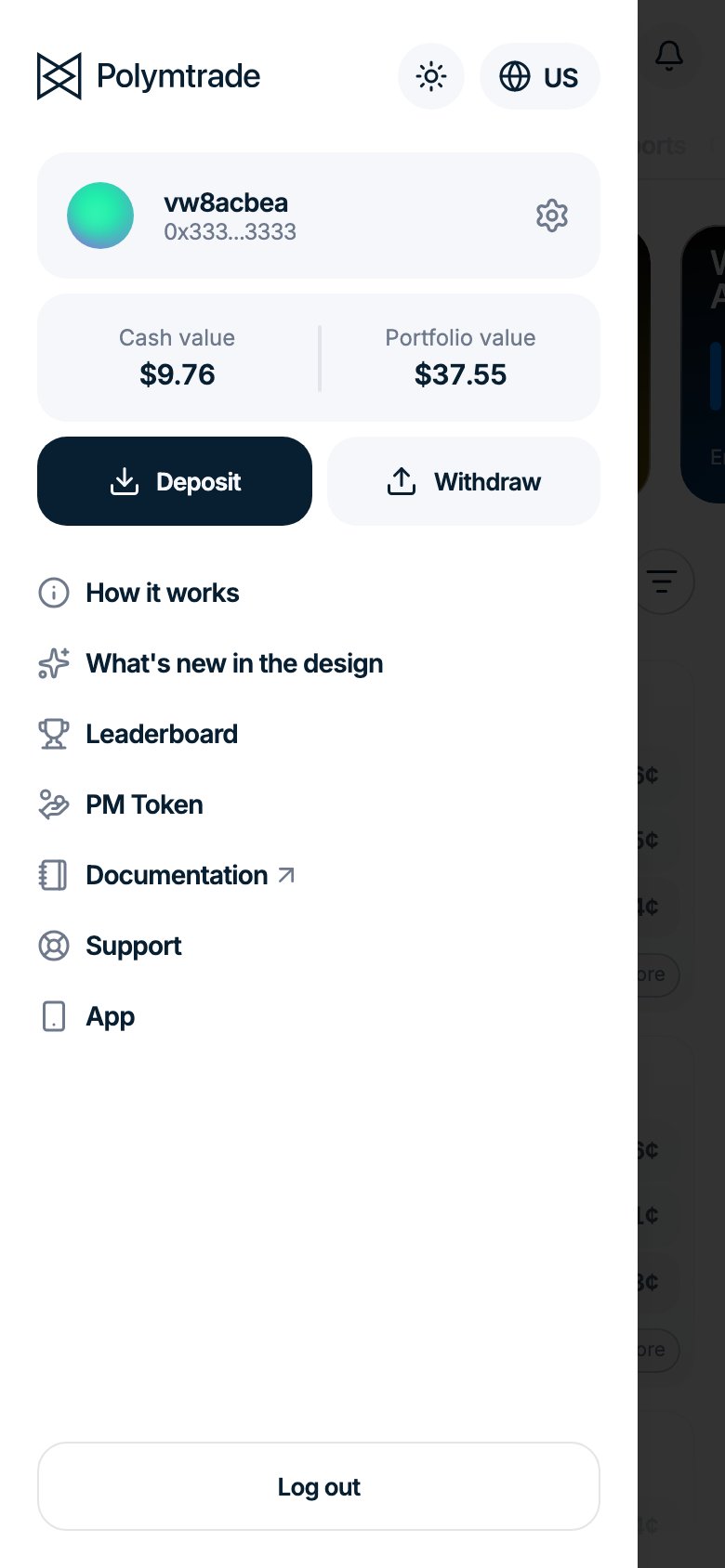
2
Choose Crypto, the network and the token
Switch to Crypto. Pick the Network you will send from and the Token.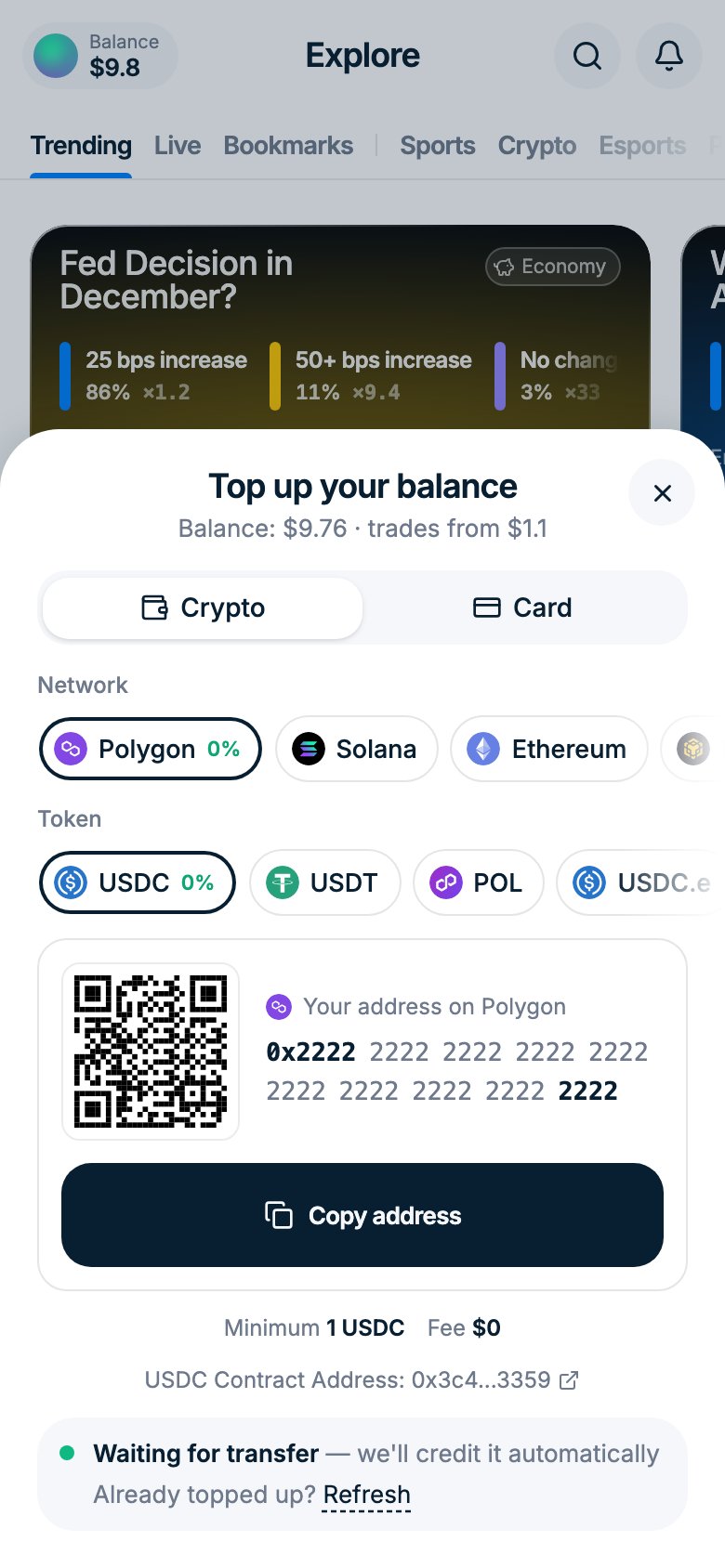
3
Copy your address and send
Tap Copy address or scan the QR code, then send the tokens from your wallet or exchange. The window shows Waiting for transfer and credits your balance automatically.
Step-by-step guides
- Revolut
- Phantom
- Other
Best for users in Europe. Sending crypto from Revolut is done through the main Revolut app (not Revolut X). The steps below guide you from Revolut X to the right place.
1
Open Revolut X and tap Withdraw
Open the Revolut X app. On the home screen tap Withdraw.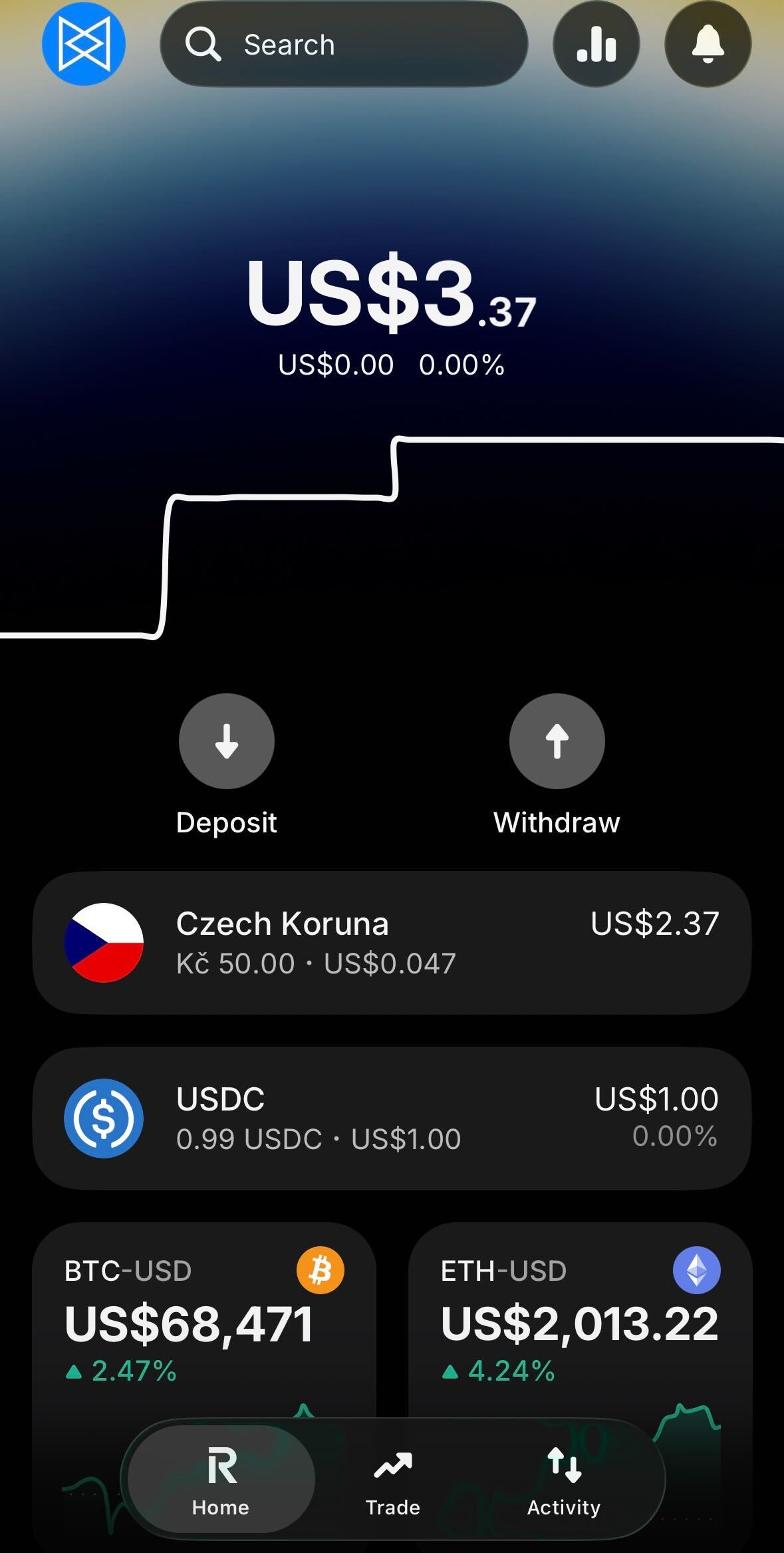
2
Tap Withdraw money
In the bottom sheet that opens, tap Withdraw money — To your other bank account.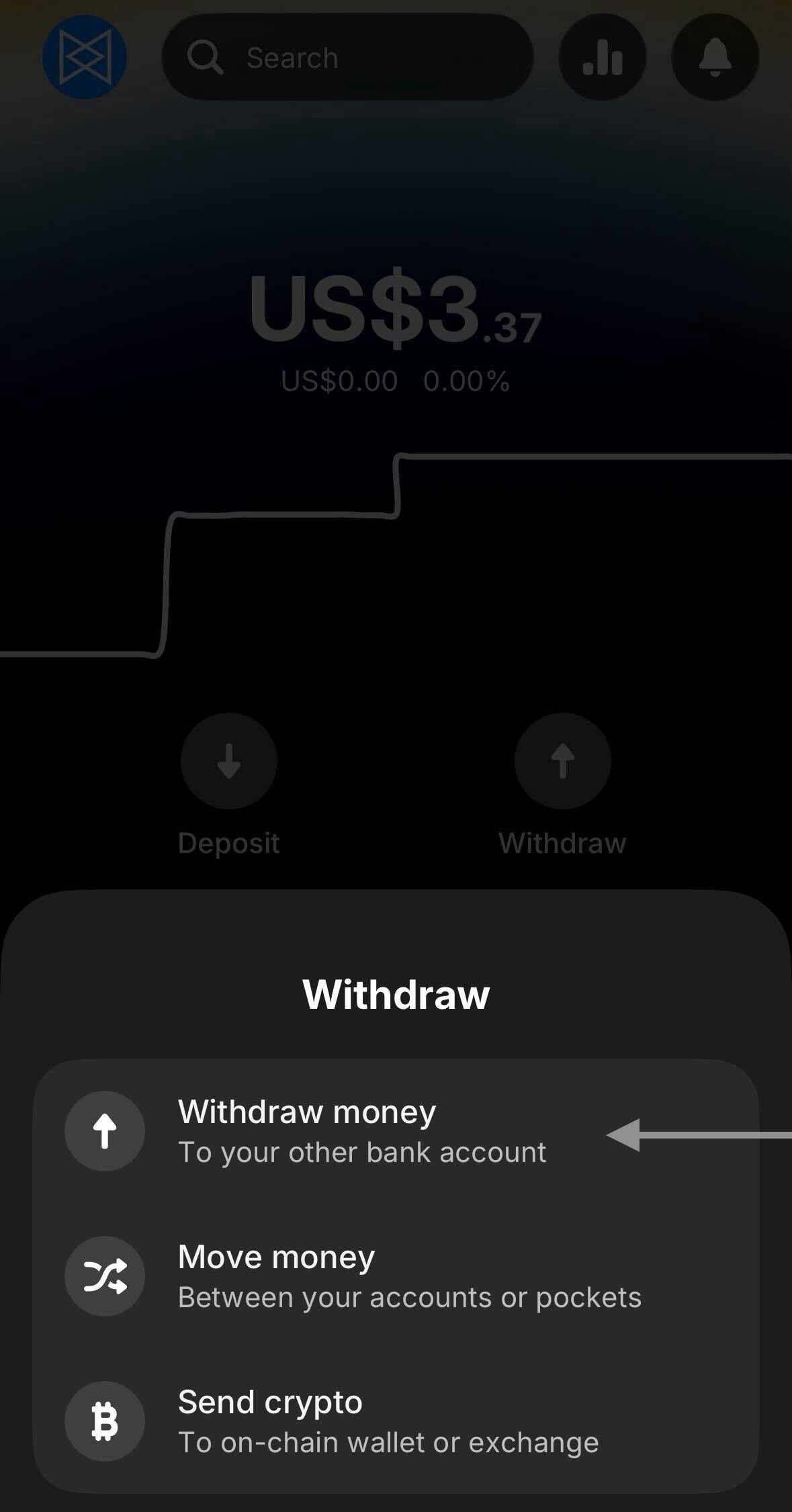
3
Open the Revolut app
Revolut X will show a message that cash withdrawals are handled in the main Revolut app. Tap Open Revolut app.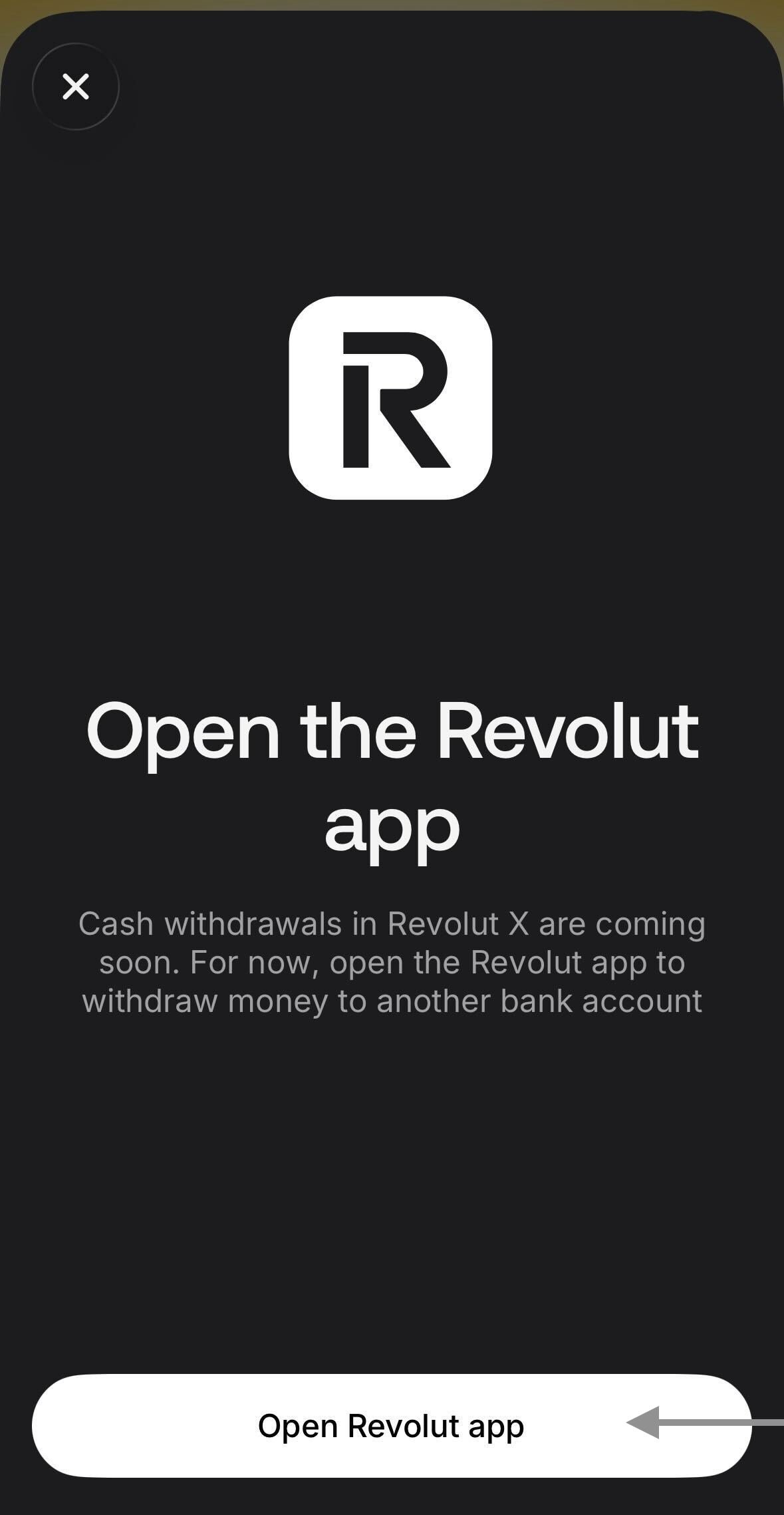
4
Go to the Crypto tab
The main Revolut app opens. At the bottom bar tap Crypto.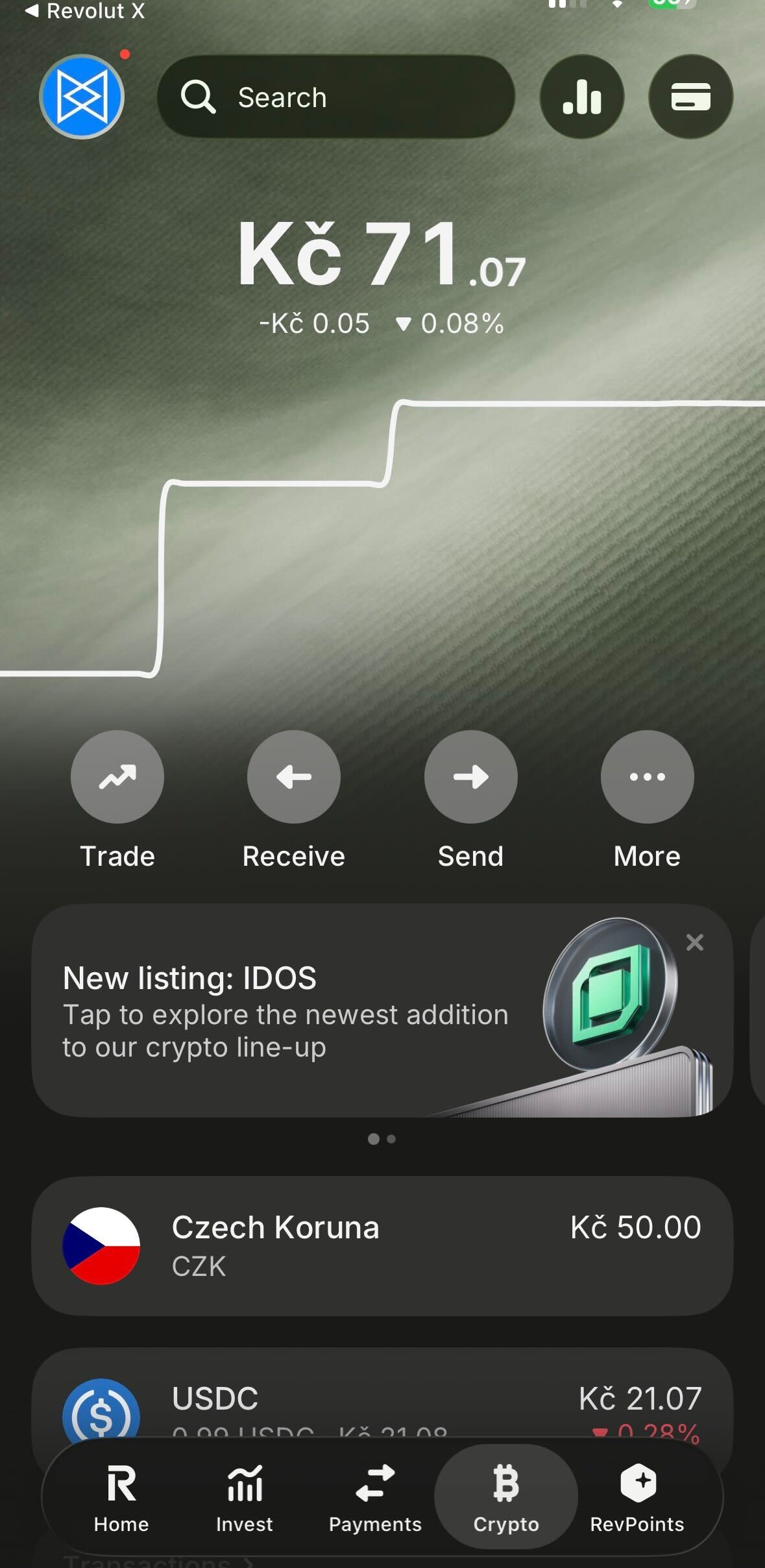
5
Tap Send crypto
You’ll see a “Send crypto simply” intro screen. Tap the Send crypto button.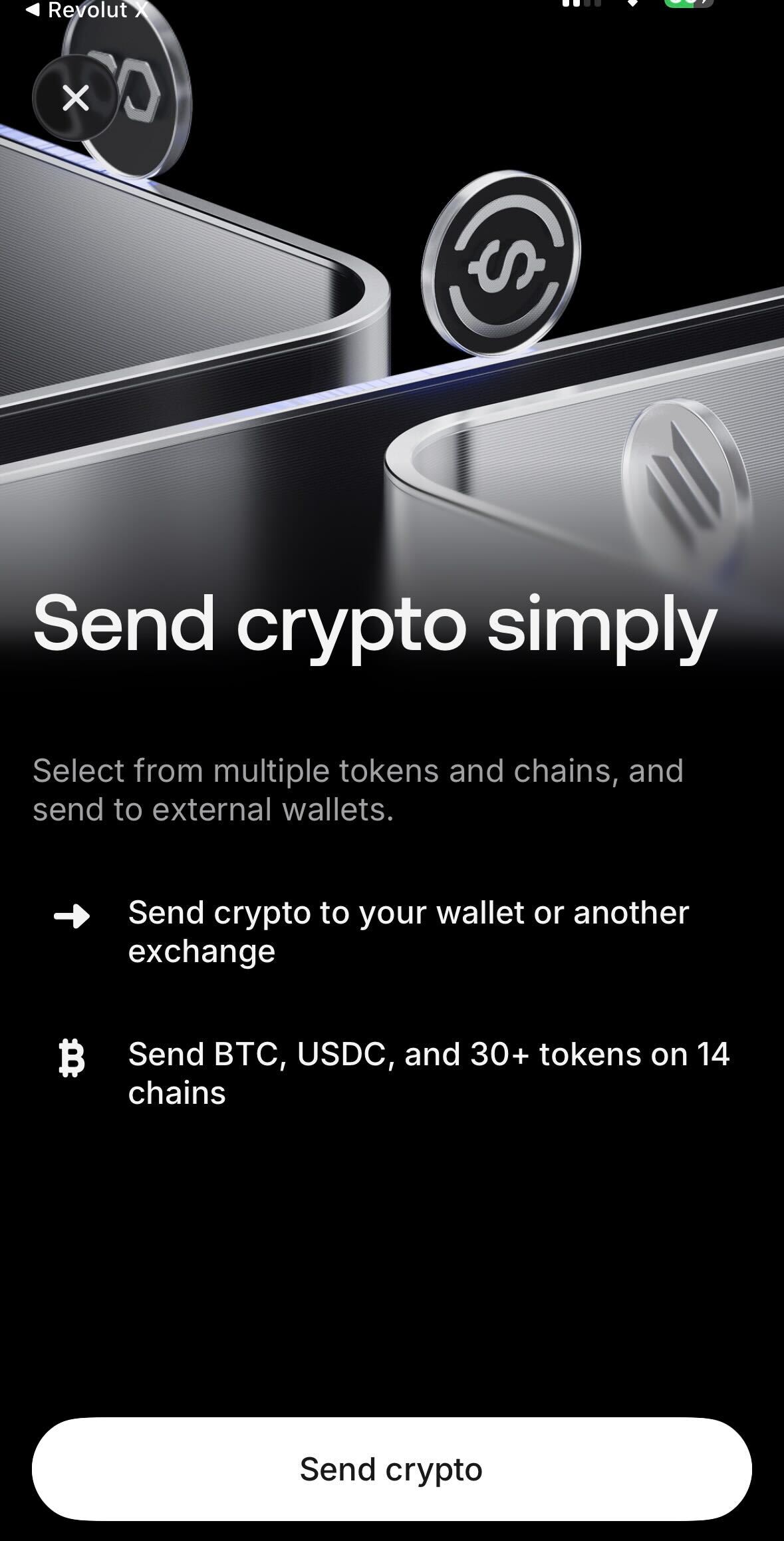
6
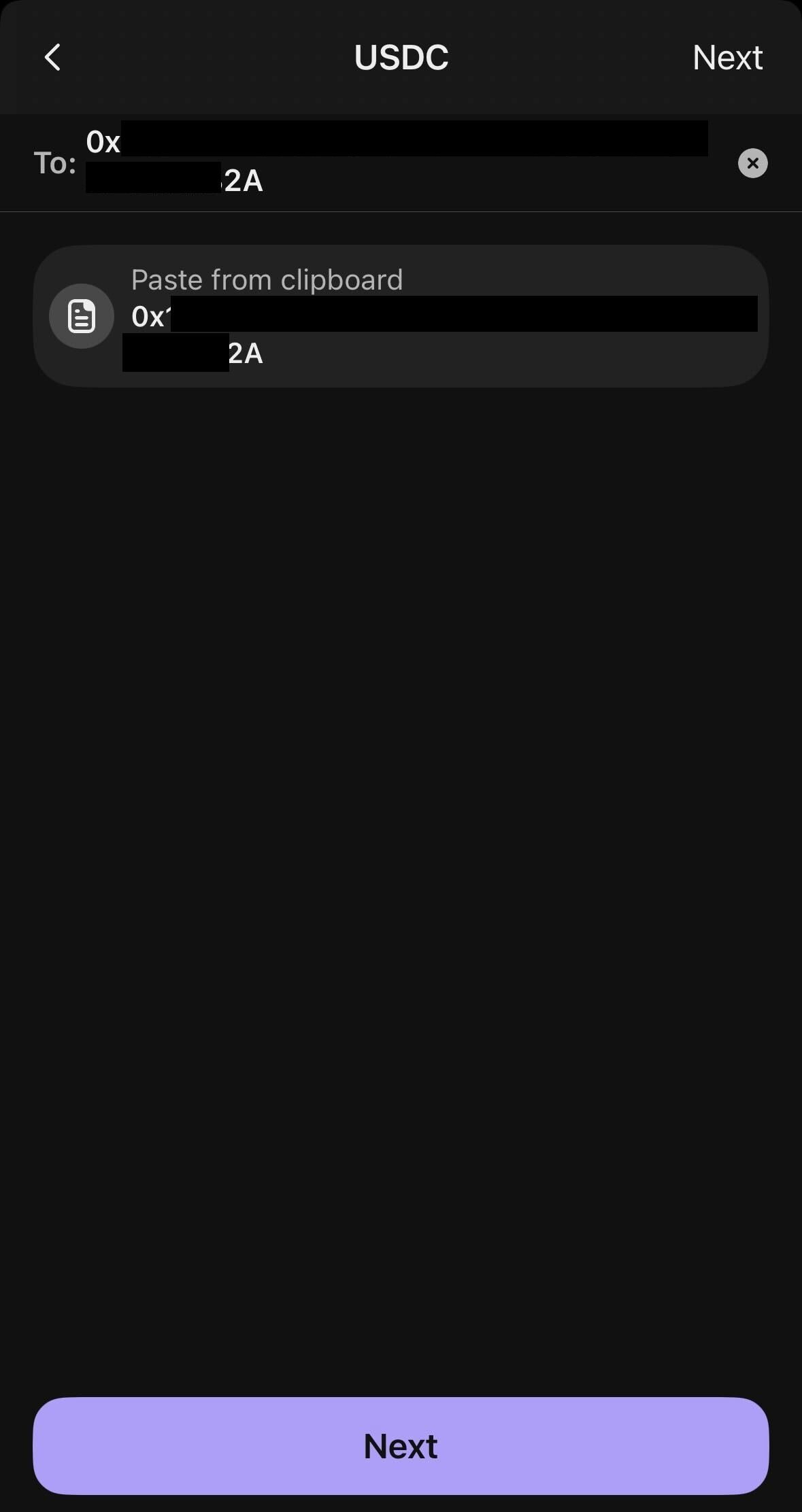
Paste your Polymtrade wallet address
In the search field, paste the wallet address you copied from Polymtrade. Tap the Send to 0x… suggestion that appears.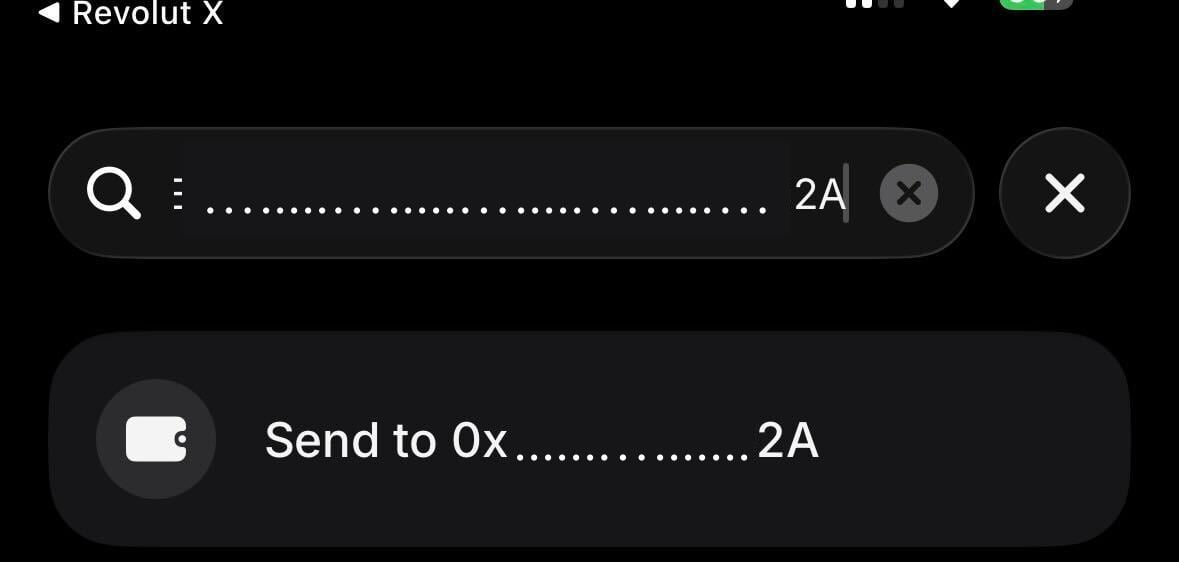
7
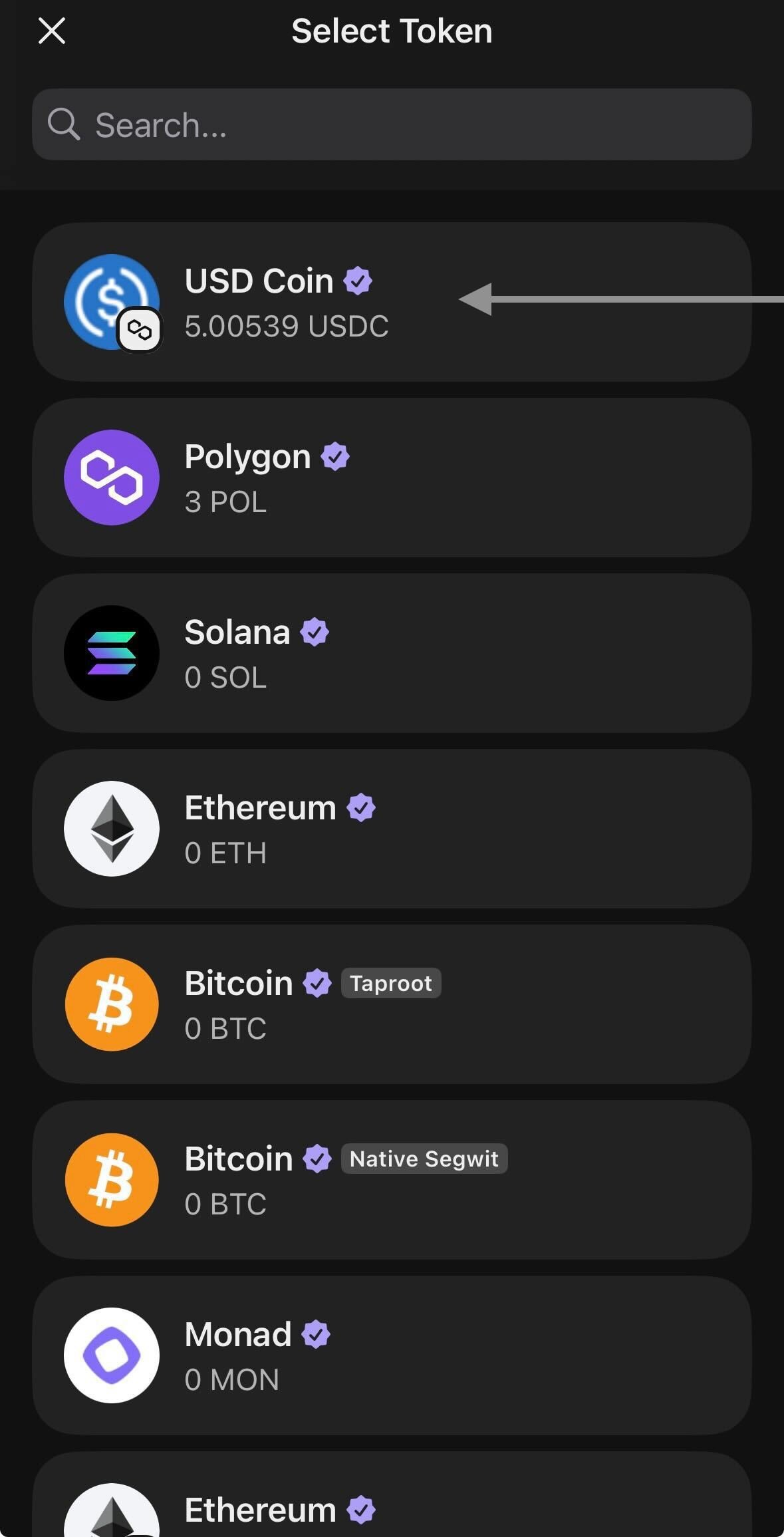
Select USDC and your source account
Choose USDC as the currency. Below, select the account you want to send from — Revolut will automatically exchange your local currency to USDC. Tap Done.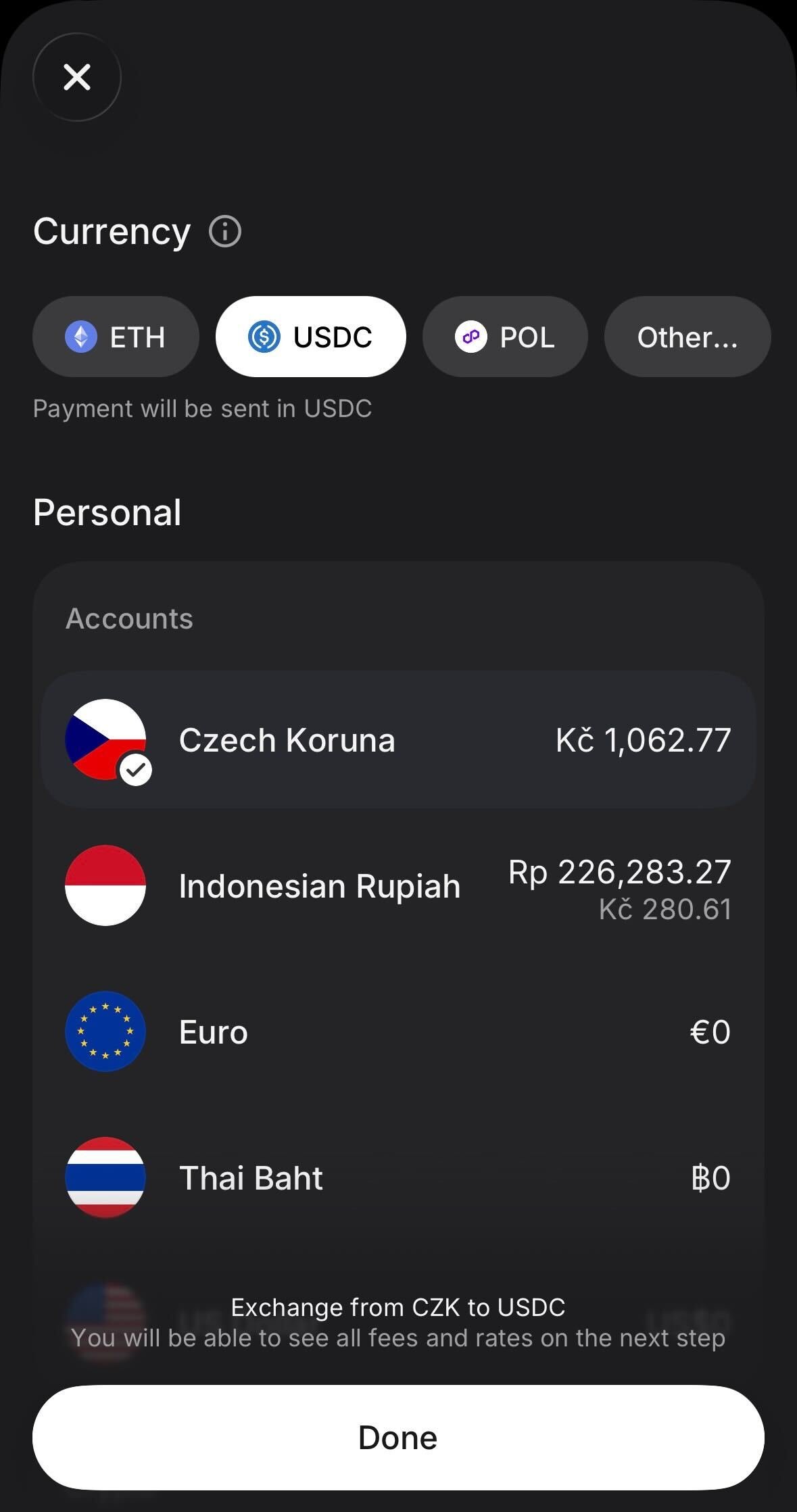
8
Select the Polygon network
On the Select network screen, choose Polygon.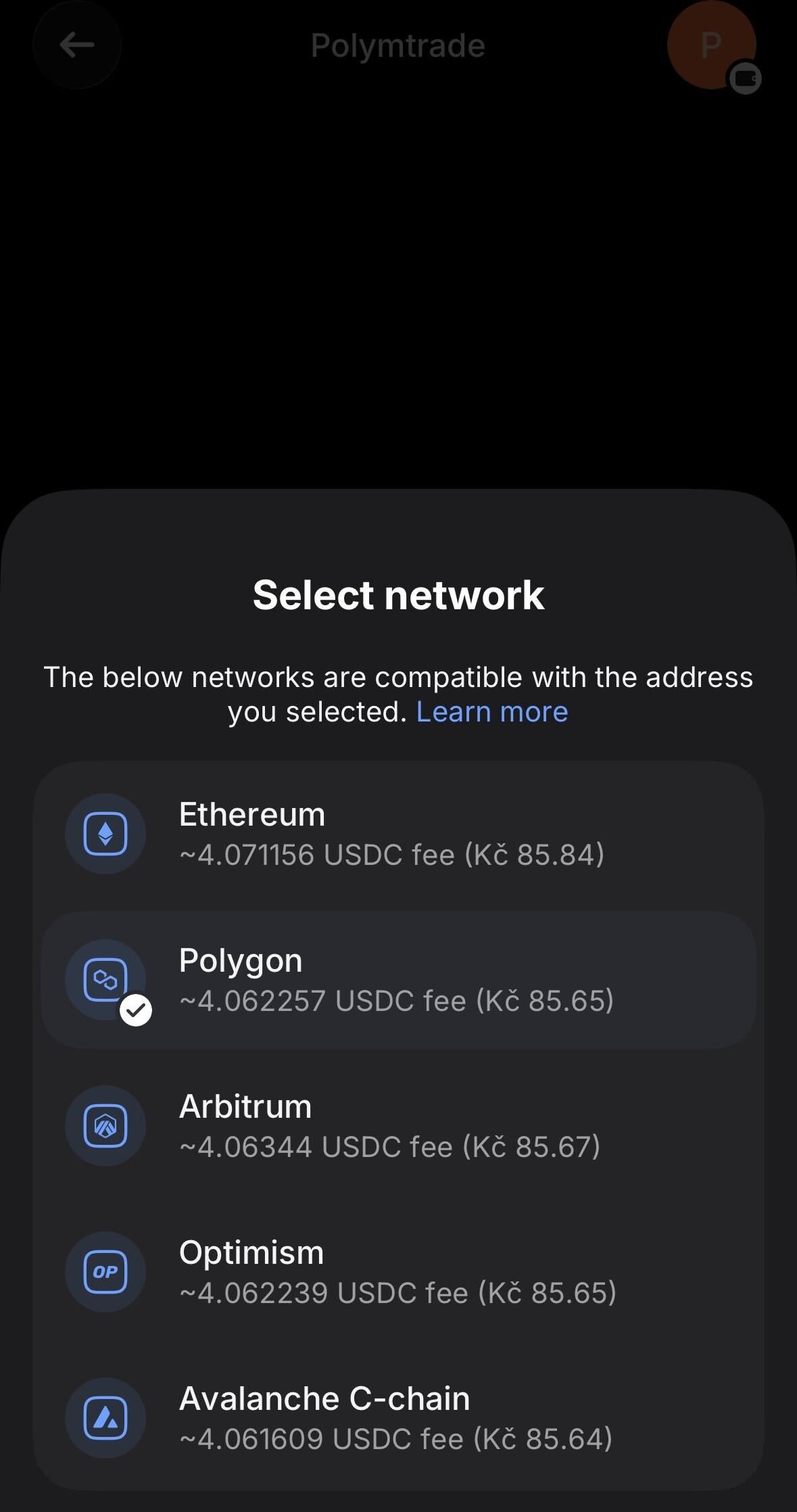
9
Enter the amount and review
Enter the amount of USDC you want to send. Verify the Network shows Polygon, then tap Review transfer.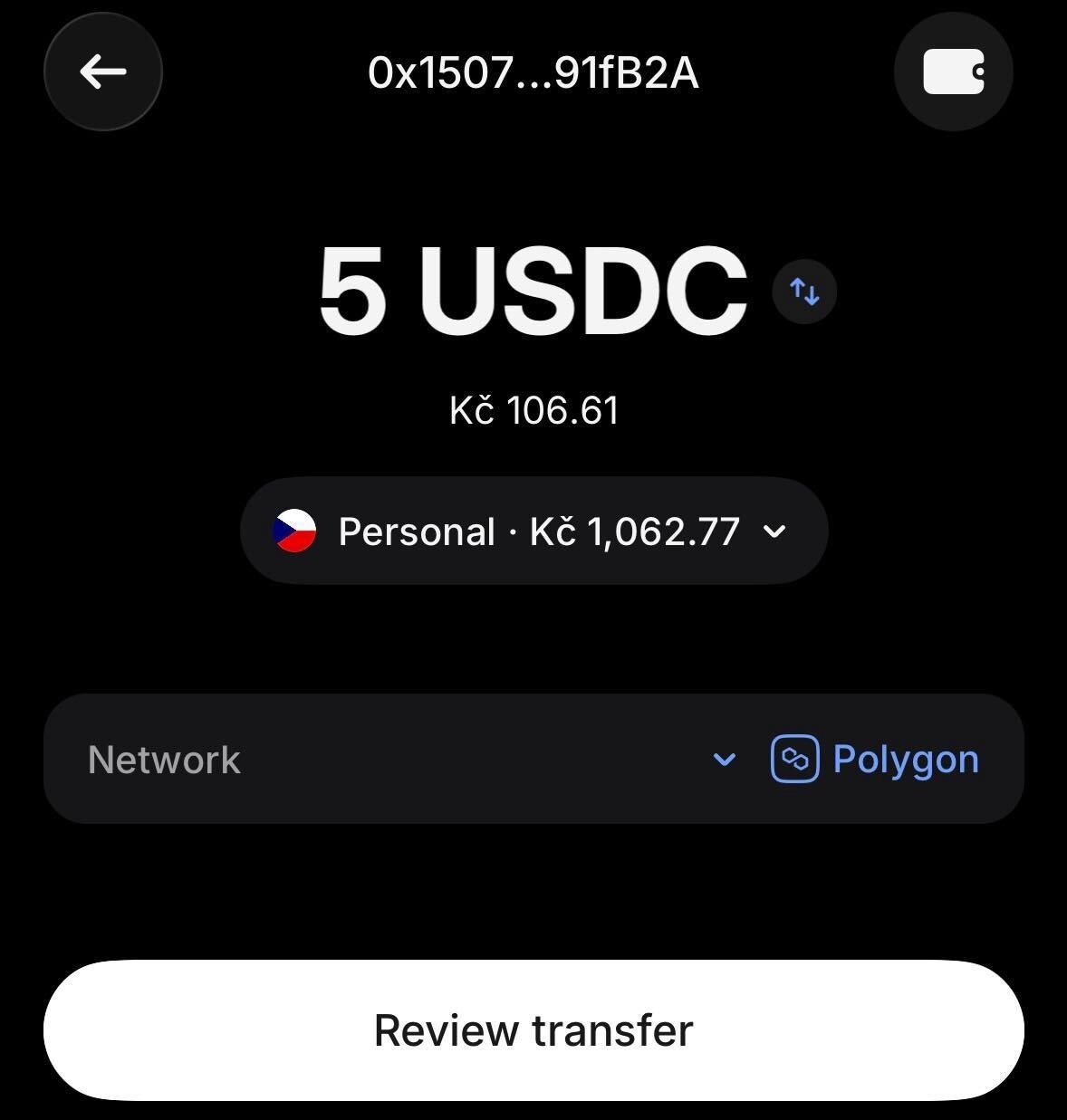
10
Confirm the address belongs to you
Revolut will ask Does this address belong to you? — tap Yes.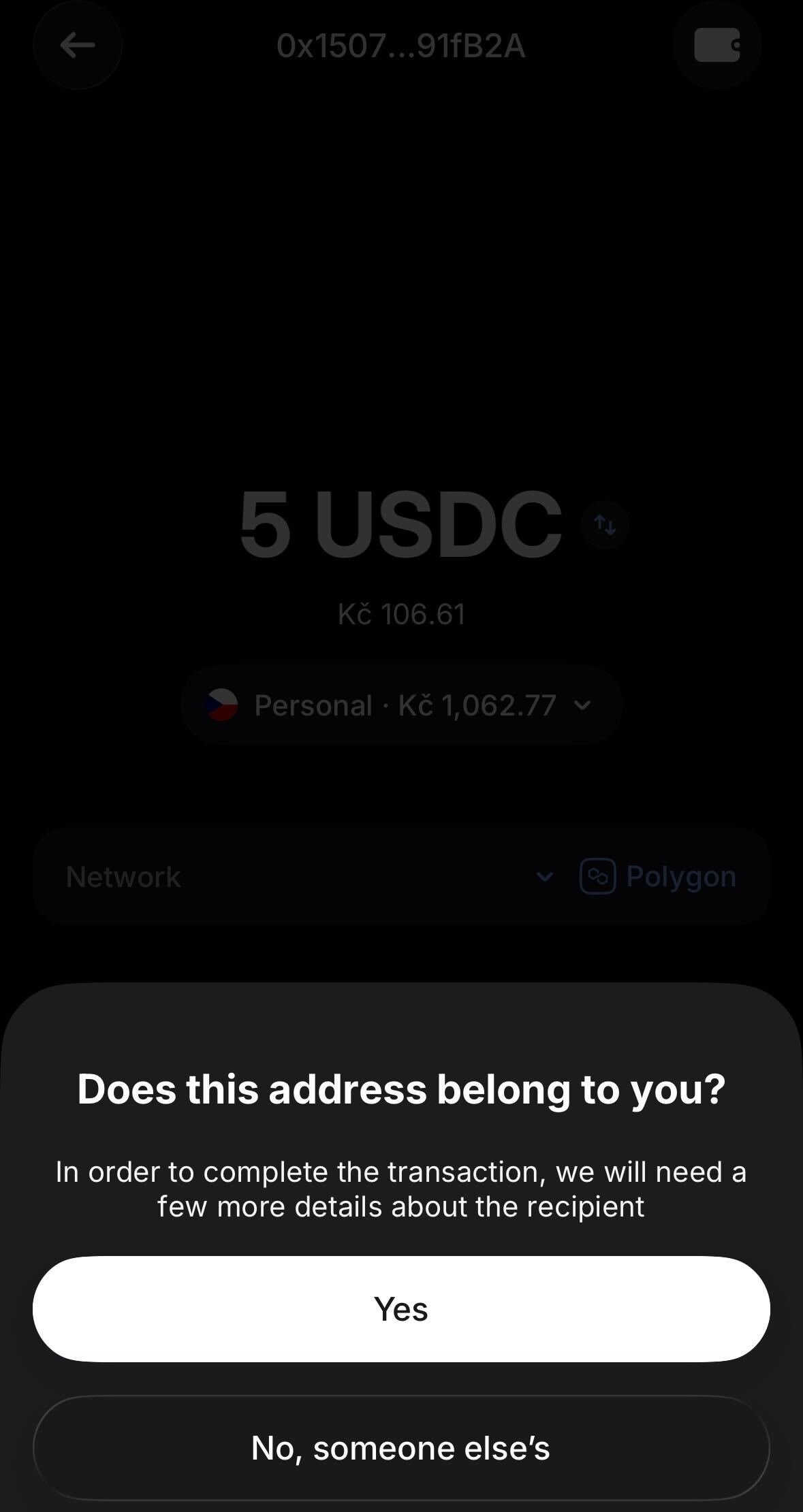
11
Fill in address details
On the Address details screen, make sure My wallet is selected. In the Wallet field, choose the wallet type — for example, Phantom. Tap Save.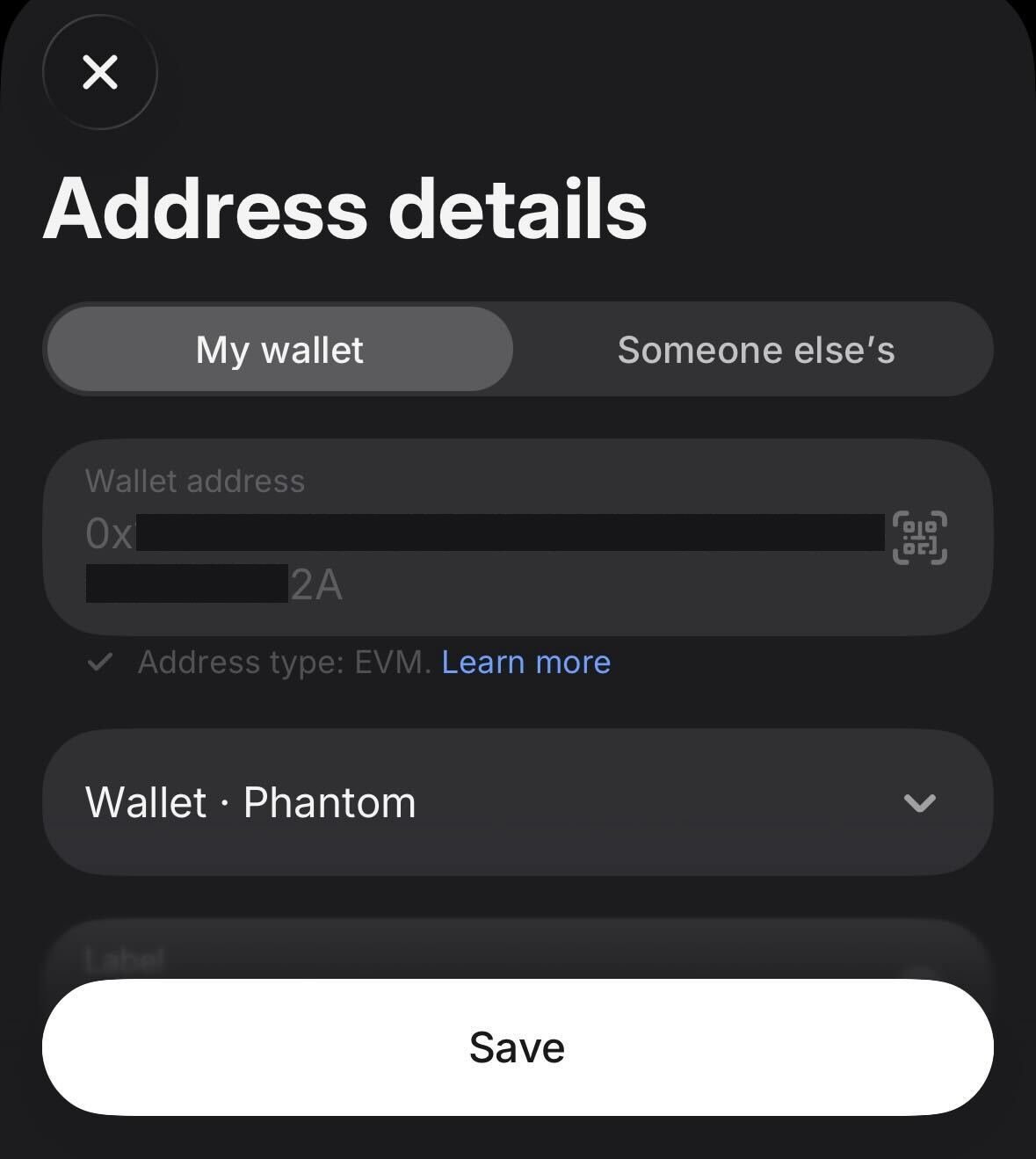
12
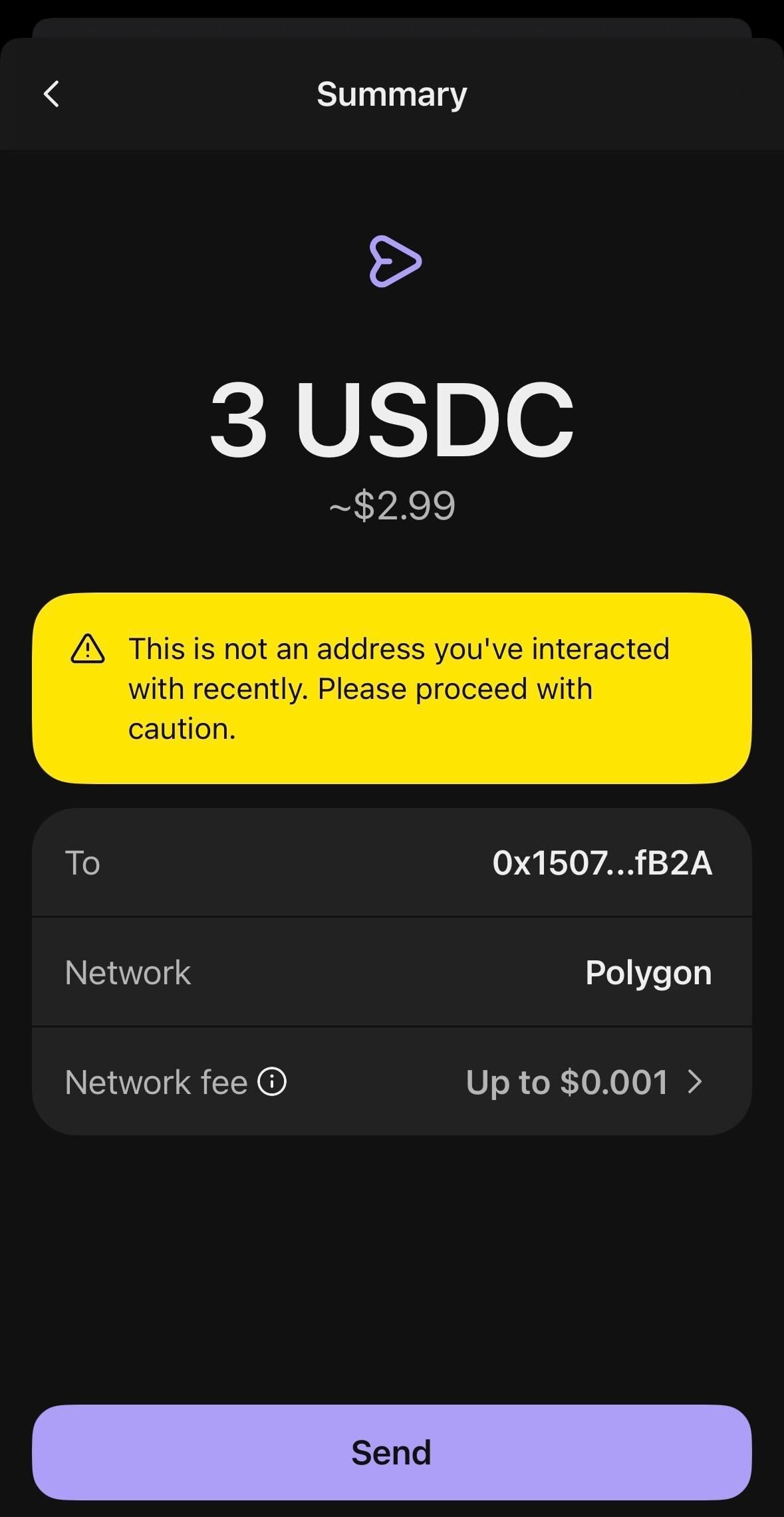
Review and confirm the transfer
Check the summary: recipient address, network (Polygon), amount, fees, and total cost. Tap Confirm transfer.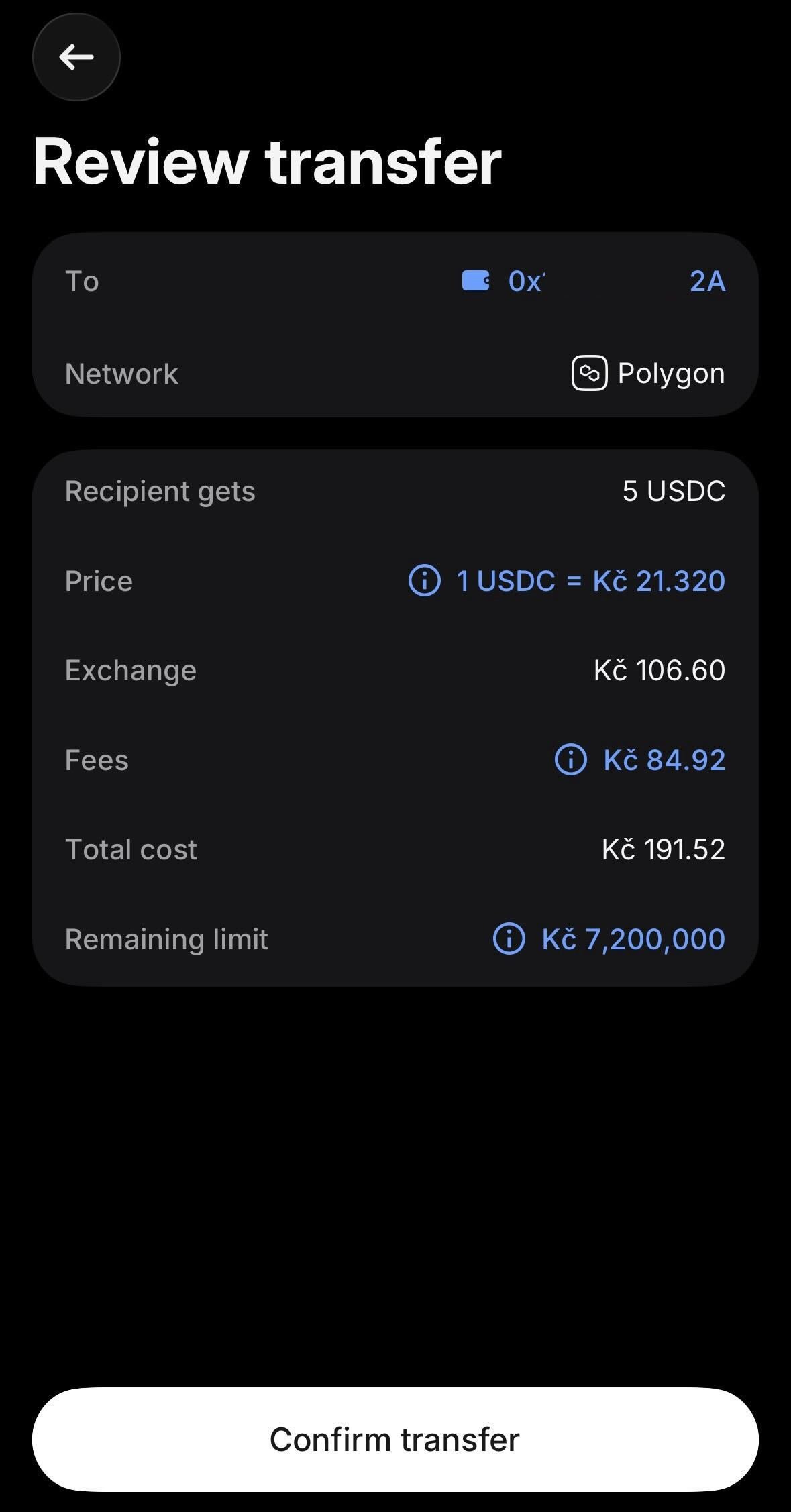
13
Transfer in progress
After confirming, you’ll see the transaction status with Request processed and Pending steps — this is normal. The transfer is being submitted on-chain.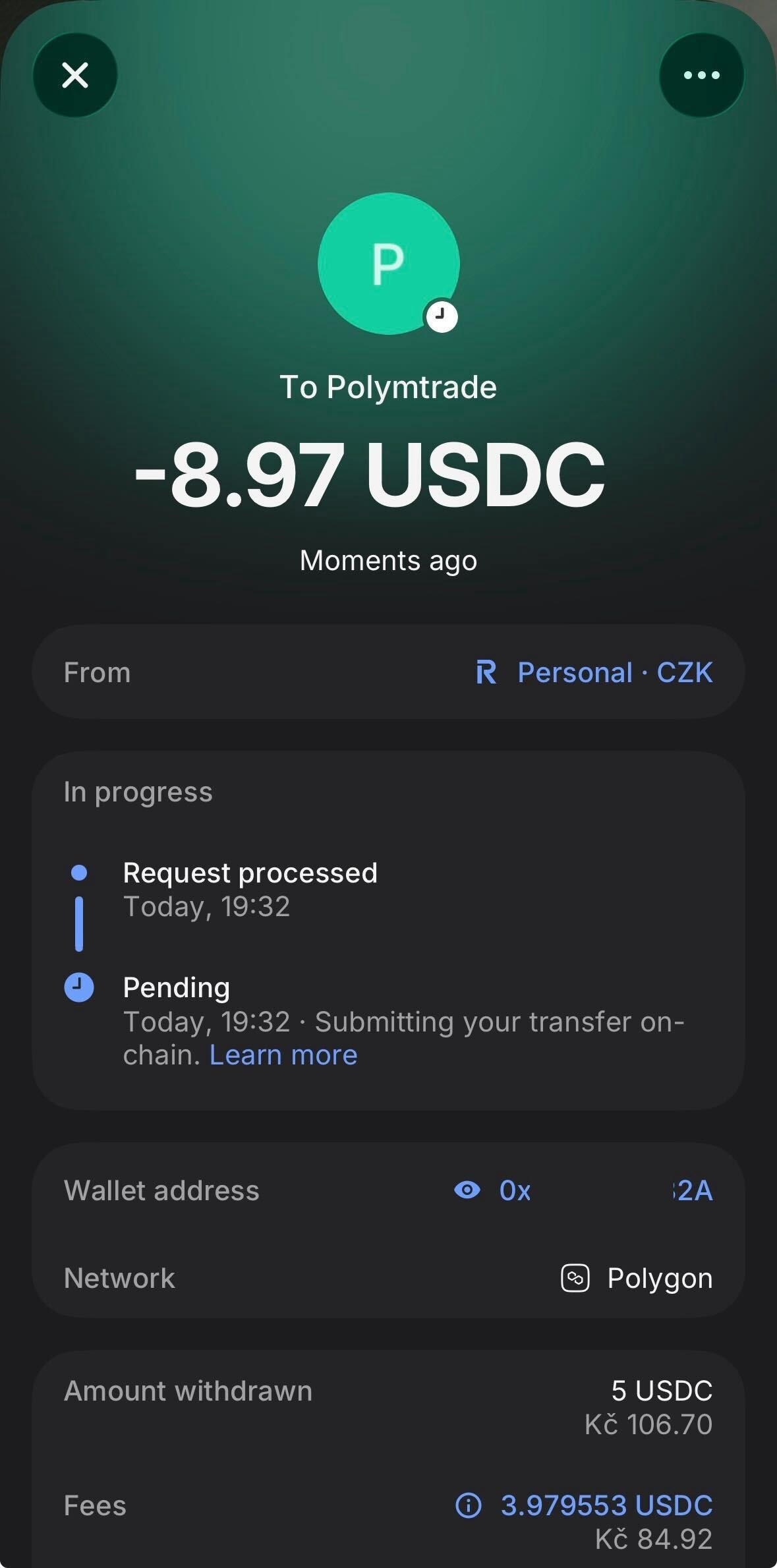
14
Check transaction in Activity (if needed)
Open the Activity tab in the Revolut X app → Transactions to track the status.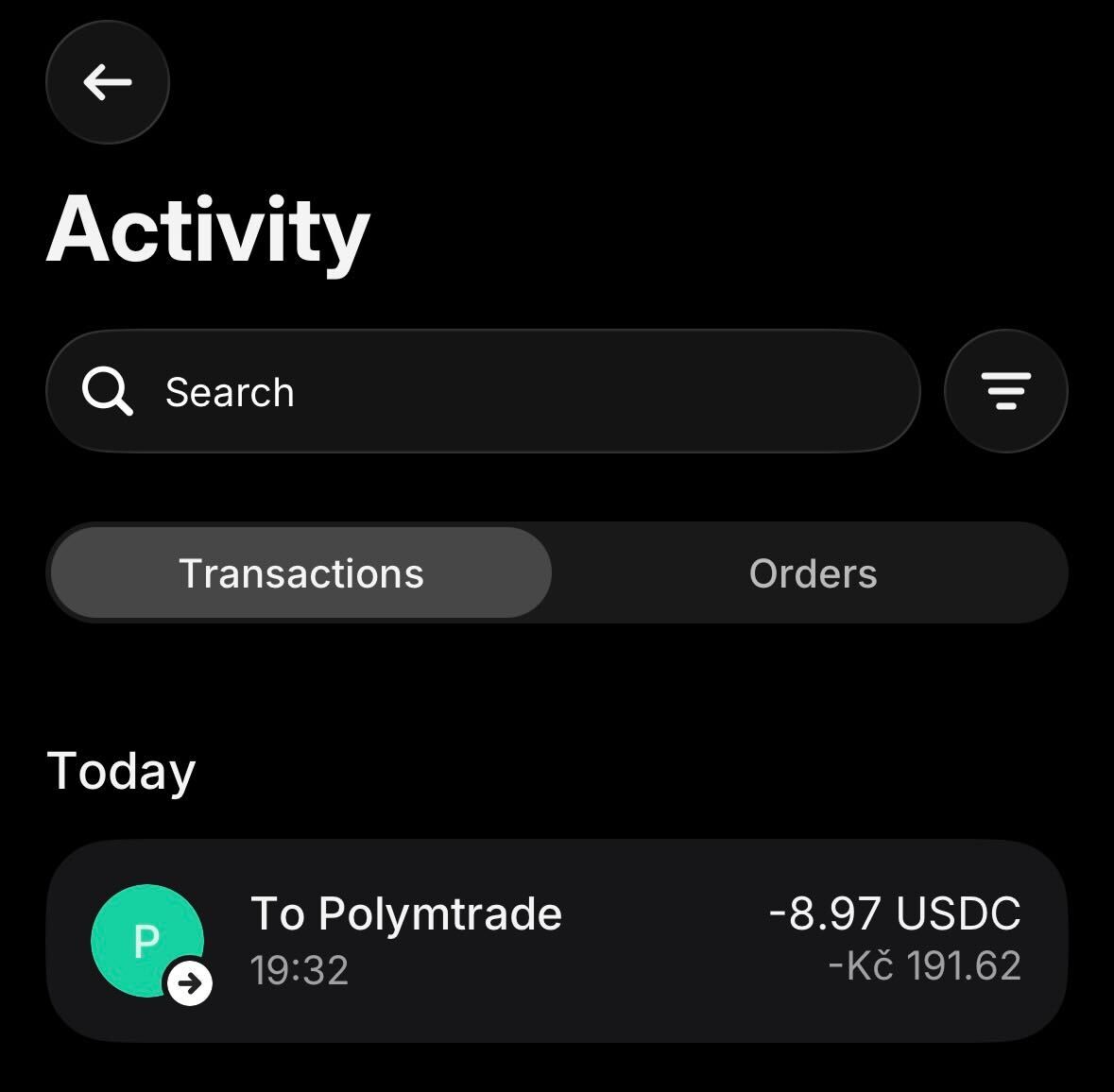
15
Transfer completed
Once done, the status changes to Completed with both steps green — Request processed and Received by recipient’s address. USDC is on its way to your Polymtrade wallet.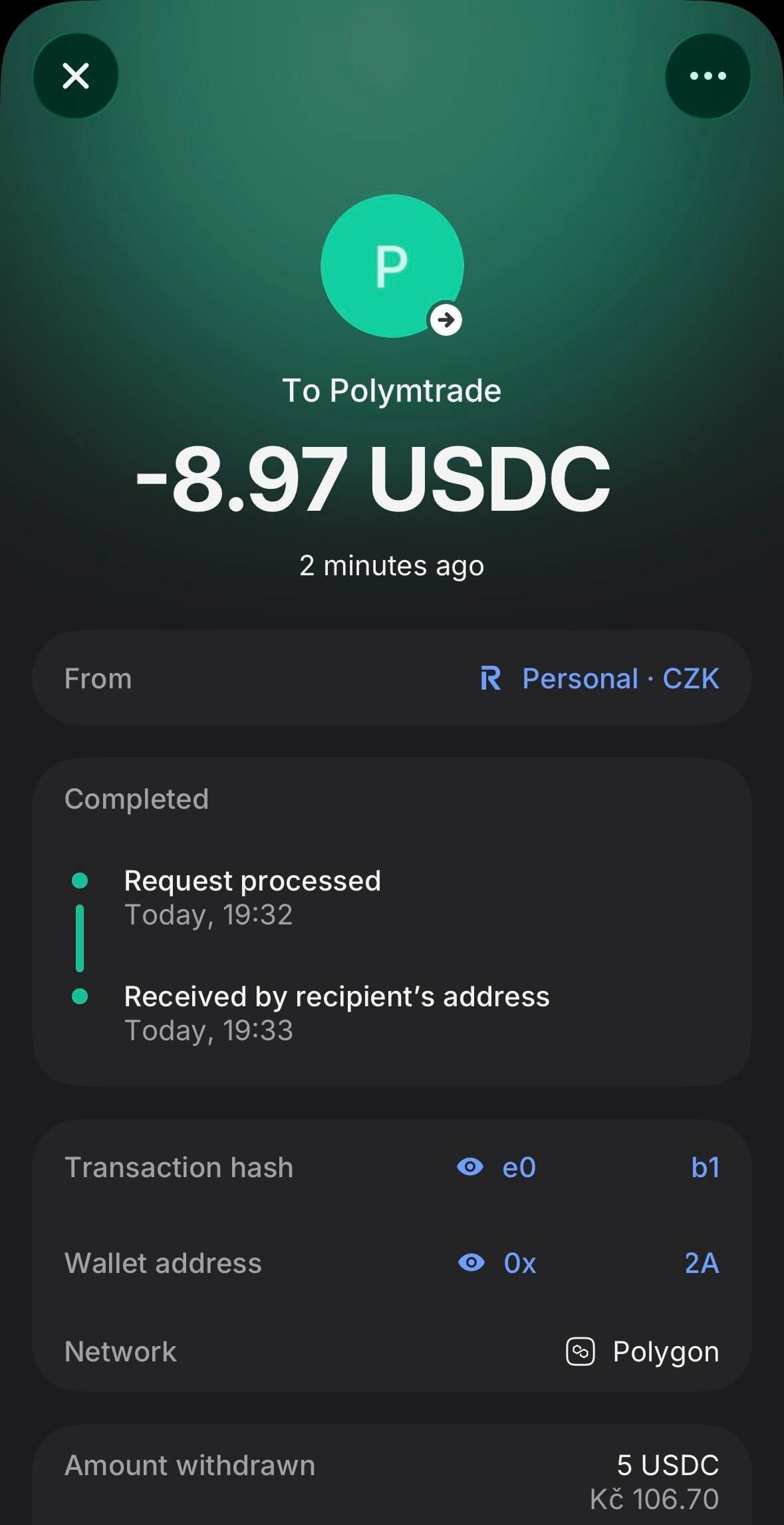
16
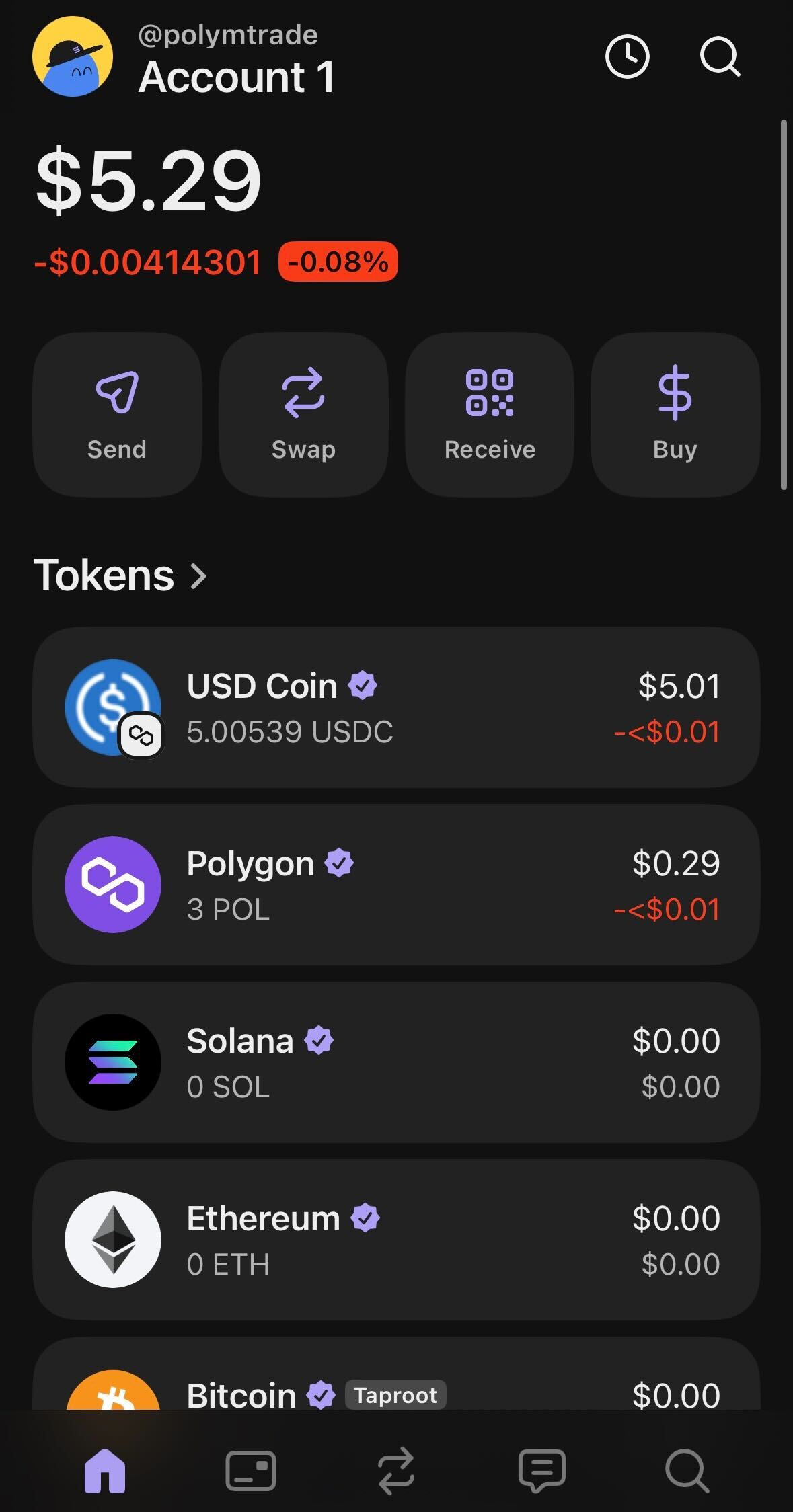
Check your balance in Polymtrade
Open Polymtrade: your balance updates automatically, usually within a few minutes. If it hasn’t, open the deposit window and tap Refresh under Already topped up?
Networks and fees
Other networks: Ethereum, Binance Smart Chain, Base, Arbitrum, Optimism and World Chain. An estimate of the fee for your network and token is shown under the address. Whatever you send is converted to pUSD, your dollar balance, automatically (see Glossary).
Minimums
The minimum depends on the token and is shown under the address: about $1 for stablecoins, 30 POL, 0.03 SOL. For Bitcoin and Tron the minimum is in dollars, shown in the window. A transfer below the minimum on a network other than Bitcoin or Tron isn’t lost: it stays on your address and is credited together with your next deposit. On Bitcoin and Tron, send at least the minimum: smaller transfers aren’t processed.Which address to send to
You’ll see several addresses in the app. Only one of them is for deposits:
Send only on a network from the list, and only tokens shown in the Token picker.
Sent on the wrong network or a token that isn’t listed? See Wrong network or token.