

1
Open your wallet app
Launch Metamask, OKX, Exodus, or any wallet that supports importing private keys.
In our example we’ll do it in Phantom wallet.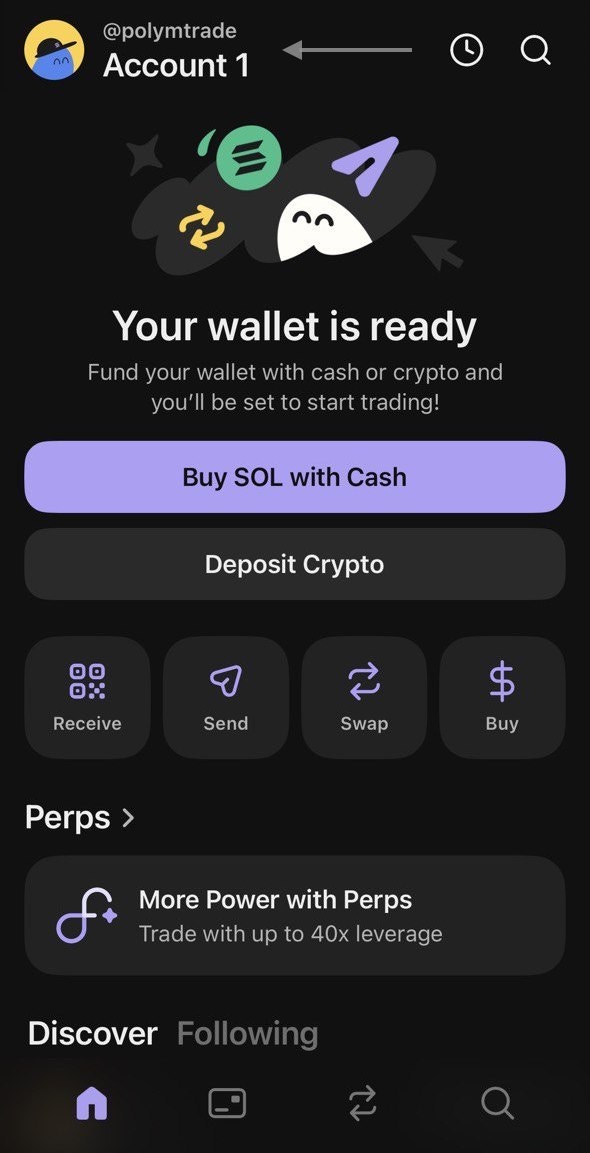
2
Find the import option
Look for buttons like “I already have a wallet”, “Import Account”, or “Restore wallet”, or, as it is in Phantom – “Add Account”.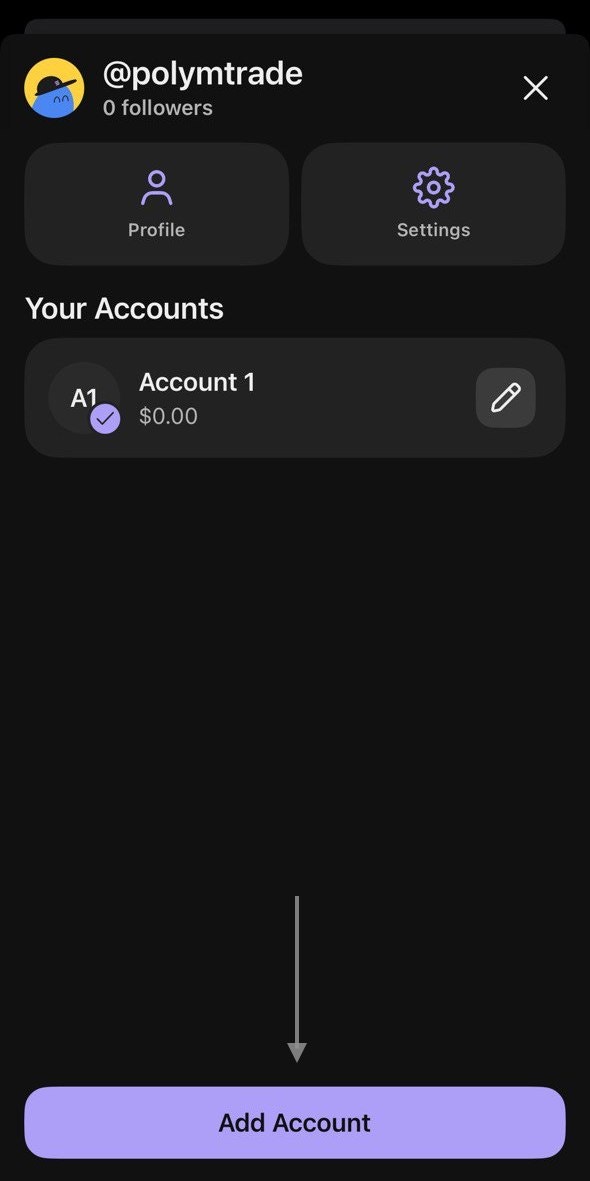
3
Choose import private key
Select Import using Private Key (not recovery phrase / seed phrase).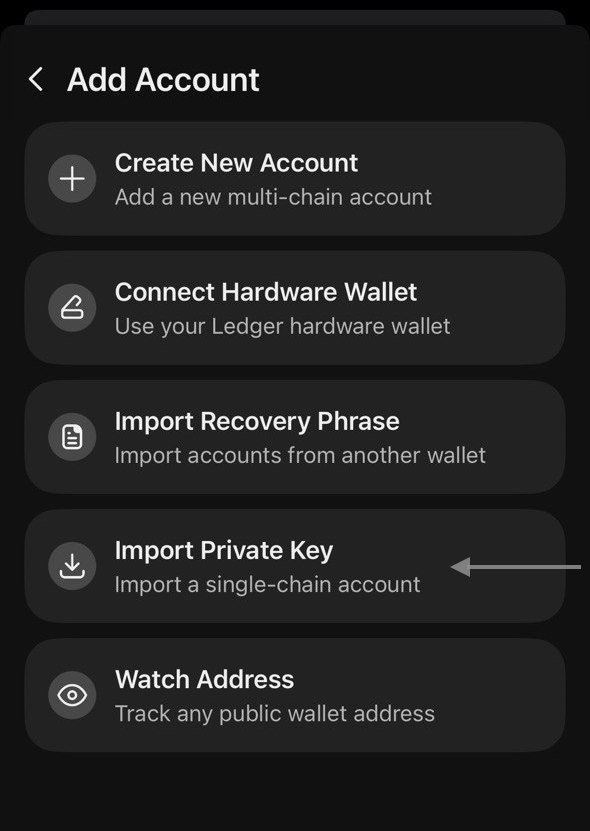
4
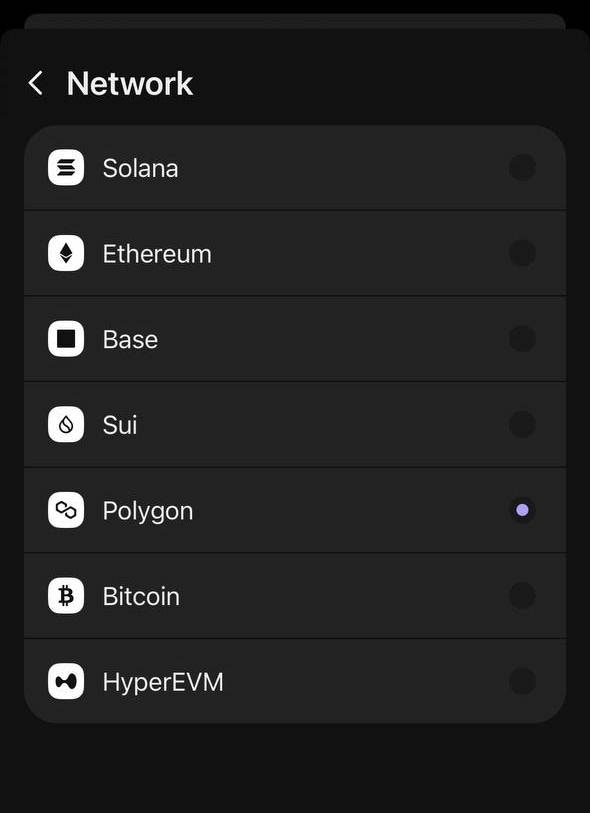
Choose correct network
Select the network where your Polymtrade funds are located (for example Polygon, Base or Ethereum).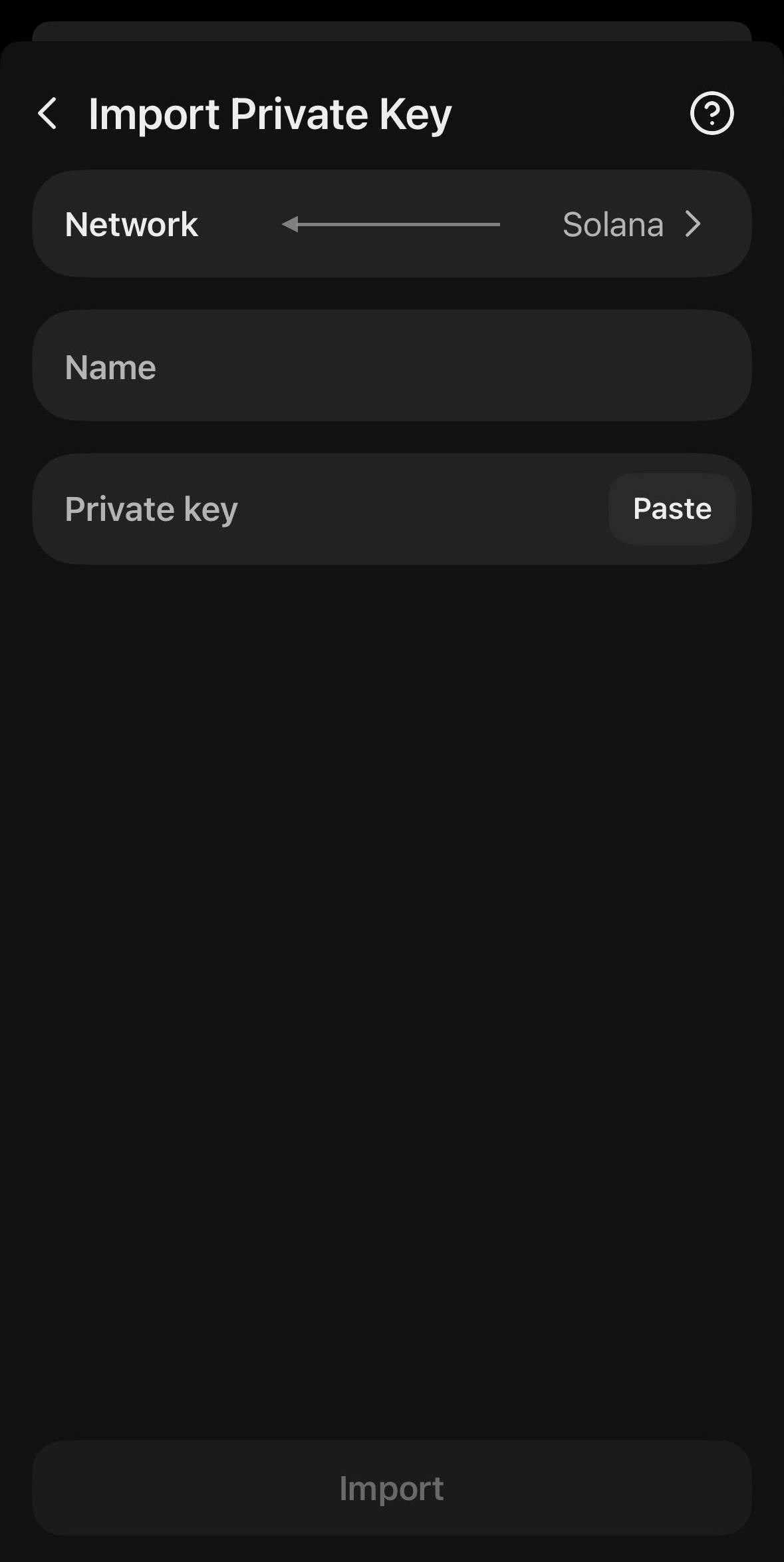
5
Paste your private key
Paste the key you copied from Polymtrade.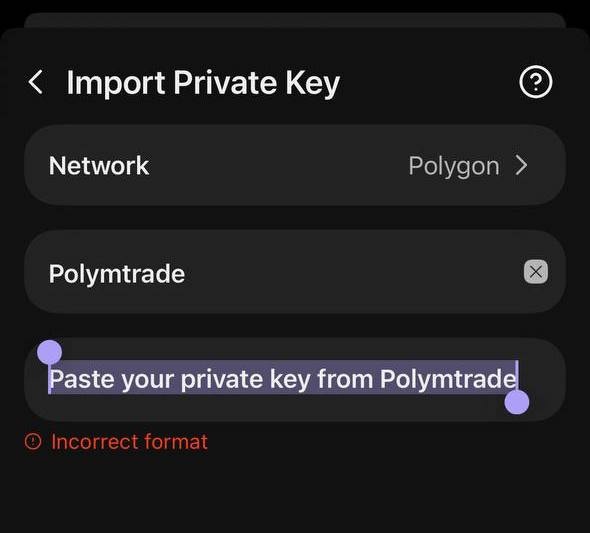
6
Complete setup
Follow the on-screen steps. You may be asked to set a password.
7
Confirm import
Press Import / Confirm — your wallet will appear in the app.
New to Phantom?
If you don’t have Phantom installed yet or you see the welcome screen instead of the account view, follow these steps first.1
Install and open Phantom
Download Phantom from the App Store or Google Play and open the app.
On the welcome screen choose how you want to start. Tap I already have a wallet if you only want to import your Polymtrade account,
or create a new wallet first and then add Polymtrade as an extra account.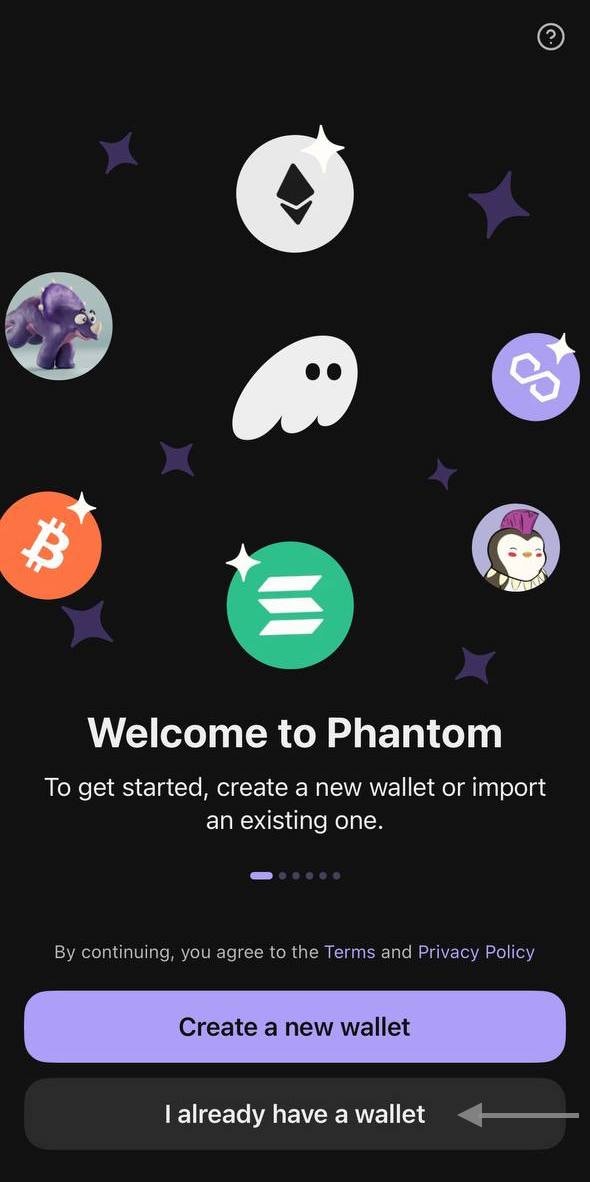
2
Open import options
On the “Add a Wallet” screen tap Other import options.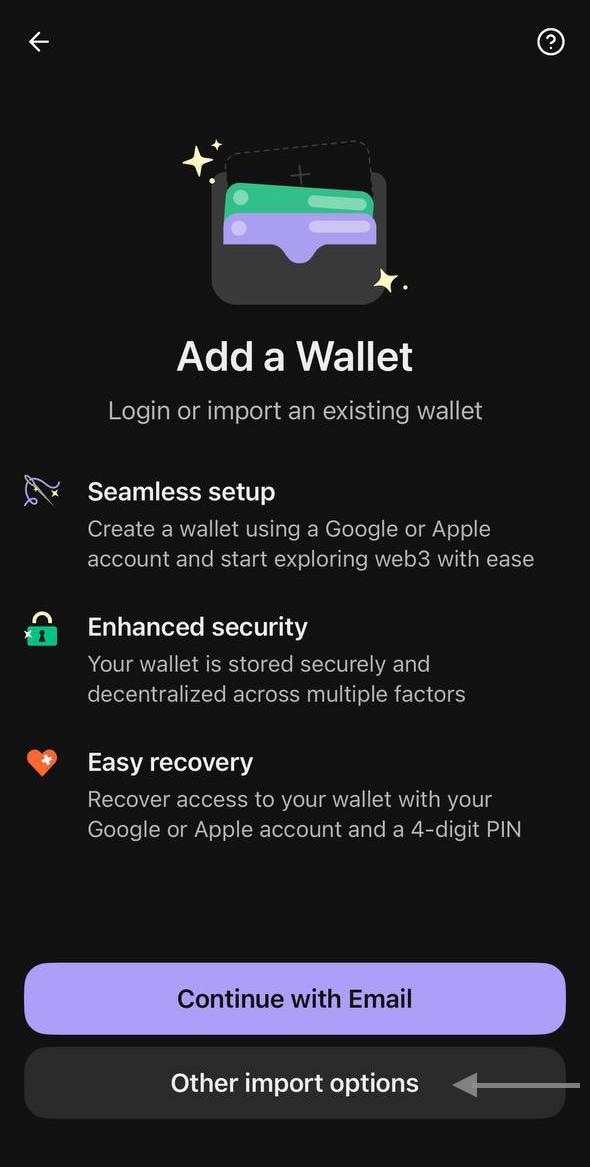
3
Select Import Private Key
In the Import Options menu choose Import Private Key.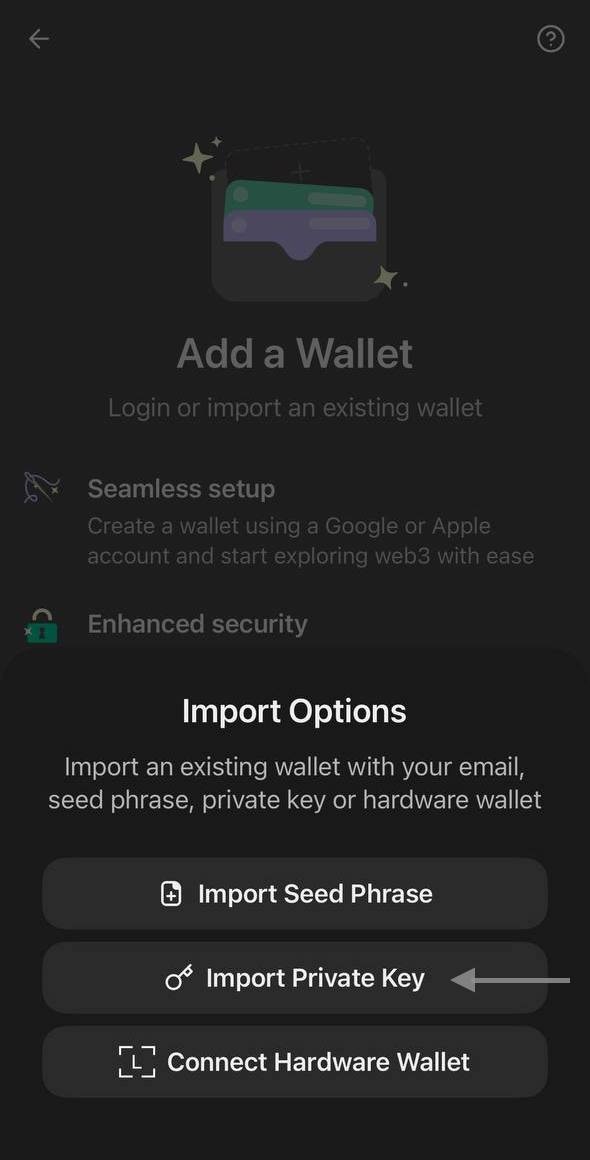 You will see the Import Private Key screen with Network / Name / Private key fields.
4
Continue with this guide
From here, continue with the steps above starting from Choose correct network.
Important notes
- Private key is full access to your funds. Never share it with anyone.
- Store it securely (offline, password manager, encrypted file, or on paper).
- Make a backup after importing.